Schnell zum Ziel: Zwei-Faktor-Authentifizierung (2FA) einrichten (via Microsoft)
Zu unserer Schnellstart-Anleitung für die Einrichtung direkt am Smartphone (also available in english): https://collab.dvb.bayern/x/Gb-QaQ
Doch zu schnell? Hier geht's zur vollständigen Anleitung
Allgemeines zur 2-Faktor-Authentifizierung
Das Rechenzentrum bietet mit Keycloak (OpenID Connect) einen modernen Authentifizierungsdienst mit Single Sign-On und Multi-Faktor-Anmeldung an. Dabei ist sowohl die föderierte Anmeldung über Microsoft OIDC (universitäres Microsoft Konto) als auch die Anmeldung via Passkey oder mit RZ-Kennung (und einem zweiten Faktor) möglich. An Dienstgeräten erfolgt besonders mit eingerichtetem Microsoft "Hello for Business" ein echtes Single Sign-On bei allen unterstützen Diensten.
Sie können bei der Anmeldung an unseren Diensten dabei jeweils die von Ihnen bevorzugte Anmeldemethode beliebig auswählen.
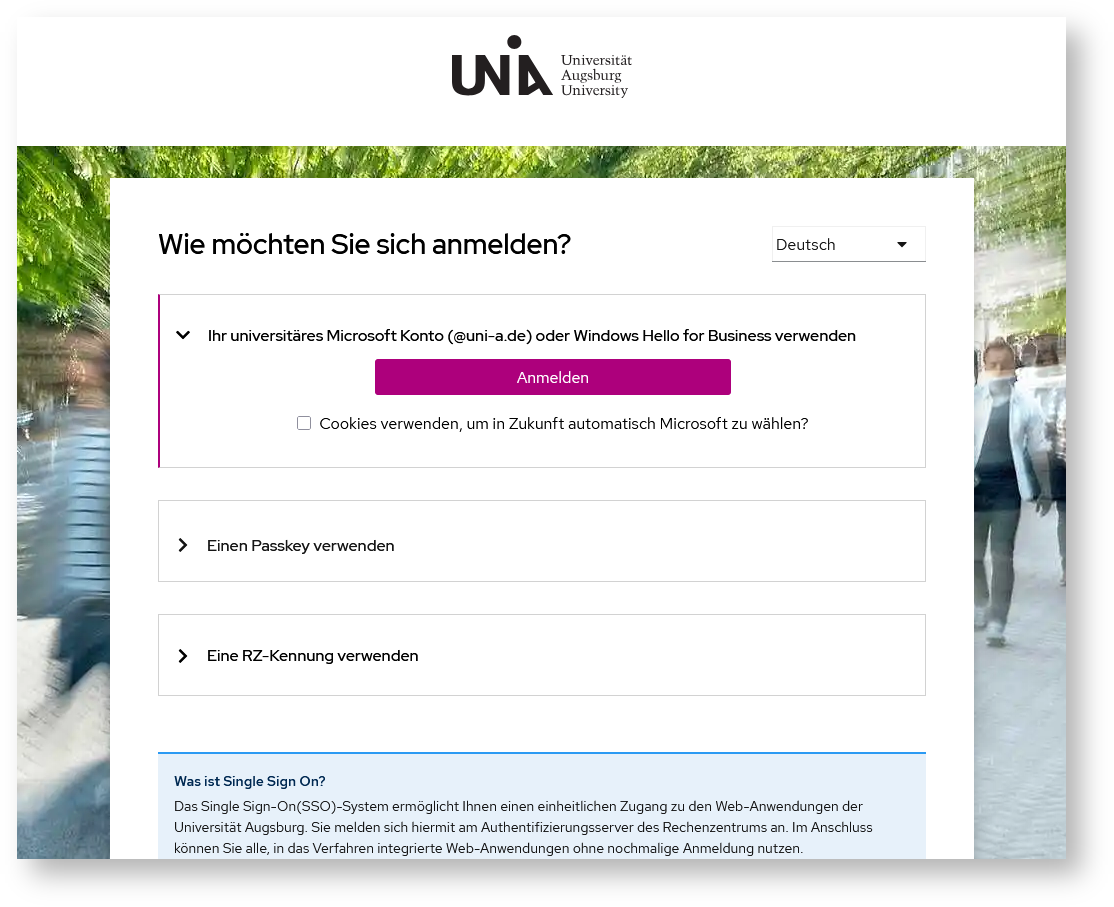
Anmeldung mit universitärem Microsoft Konto
Über den neuen Anmeldedienst ist der Login durch den universitären Microsoft Account an allen angebundenen Diensten möglich. An Dienstgeräten kann direkt die über "Hello for Business" erfolgte Anmeldung zum komfortablen und passwortlosen Login genutzt werden.
Anmeldung mit Passkey (Passwortlos)
Nach der Einrichtung können verschiedene Plattformen und Anbieter als passwortlose 2-Faktor-Anmeldung verwendet werden. An Smartphones ist z.B. die Verwendung des Google- oder Apple-Passwortmanagers (Cloud) sehr komfortabel - Es können aber auch lokale Passwortmanager wie z.B. KeePassXC oder KeePassium genutzt werden. Auch dedizierte (FIDO2-) Sicherheitsschlüssel (YubiKey, SoloKey etc.) und können plattformübergreifend sehr komfortabel genutzt werden (für die Nutzung am Smartphone eignen sich hier besonders Schlüssel mit der kontaktlosen NFC-Schnittstelle).
Anmeldung mit RZ-Kennung
Weiterhin ist auch die Anmeldung via RZ-Kennung möglich. Nutzer, die nicht die Microsoft-Infrastruktur zur Anmeldung nutzen möchten, können sich mit RZ-Benutzerkennung und Passwort anmelden, hinzu kommt auch hier zur Steigerung der Sicherheit die Angabe eines zweiten Faktors. Um diesen Faktor initial zu hinterlegen, ist einmalig eine Anmeldung via Microsoft Account notwendig, da dieser bereits durch zwei Faktoren gesichert ist.
|
|
|
|
|
