Info
Sollte noch kein zweiter Faktor bei der Anmeldung mit Ihrem universitären Microsoft-Konto hinterlegt sein, werden Sie aufgefordert, diesen im Zuge Ihrer Anmeldung einzurichten. Hierfür bieten sich Ihnen folgende Möglichkeiten:
- Studierende/Gäste: Nutzung eines TOTP-fähigen Clients (Empfehlung: Microsoft Authenticator)
- Beschäftigte: Nutzung eines TOTP-fähigen Clients (Empfehlung: Microsoft Authenticator) oder Nutzung von Passkeys
Tipp
Zur Anmeldung wird der UPN, also die kurze "@uni-a.de" E-Mailadresse, sowie das zur RZ-Kennung gehörende Passwort verwendet. Den korrekten UPN können Sie beispielsweise im globalen "Personen" Adressbuch im Webmail abfragen.
FAQ
Bekannte Probleme und (Fehler-)Meldungen finden Sie in folgendem FAQ: Entra-ID Bekannte Fehler und Meldungen
Einrichtungsdialog beim ersten Login
- Bei der ersten Anmeldung - z.B. bei https://myaccount.microsoft.com - wird zum Hinzufügen eines zweiten Faktor aufgefordert
- "Weiter"

- Je nachdem welche Methode eingerichtet werden soll fahren Sie mit dem entsprechenden Abschnitt der Anleitung fort:
Microsoft Authenticator-App (TOTP/Push)
Die App wird nach der Einrichtung *dauerhaft* zum Login benötigt - die App sollte entsprechend nicht Deinstalliert werden, da dadurch die Konfiguration verloren geht. Ebenso sollten Sie vor einem Gerätewechsel zunächst die Einrichtung mit dem neuen Gerät überprüfen bevor Sie das alte Gerät zur Weitergabe/Entsorgung zurücksetzen.
Die Screenshots der Smartphone-App wurden auf iOS (iPhone) erstellt, die Android App weicht hier nur leicht im Design ab, die Menüführung und die Schritte sind allerdings identisch. Sollten dennoch Probleme auftreten, erhalten Beschäftigte bei der zuständigen DV-Betreuung und Studierende im ZEBRA Unterstützung bei der Einrichtung.
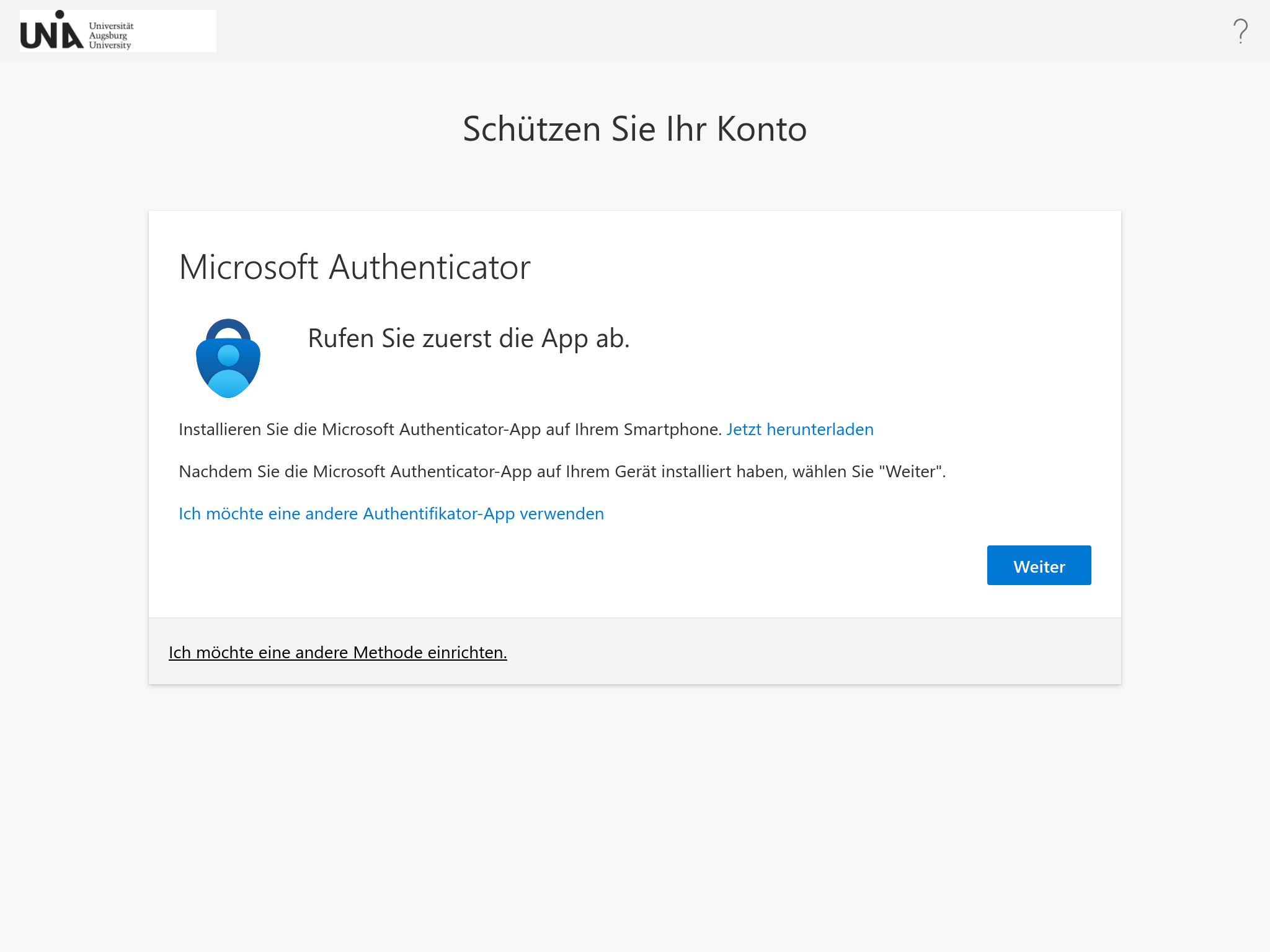
- Die Verwendung der Microsoft Authenticator App mit "Weiter" bestätigen

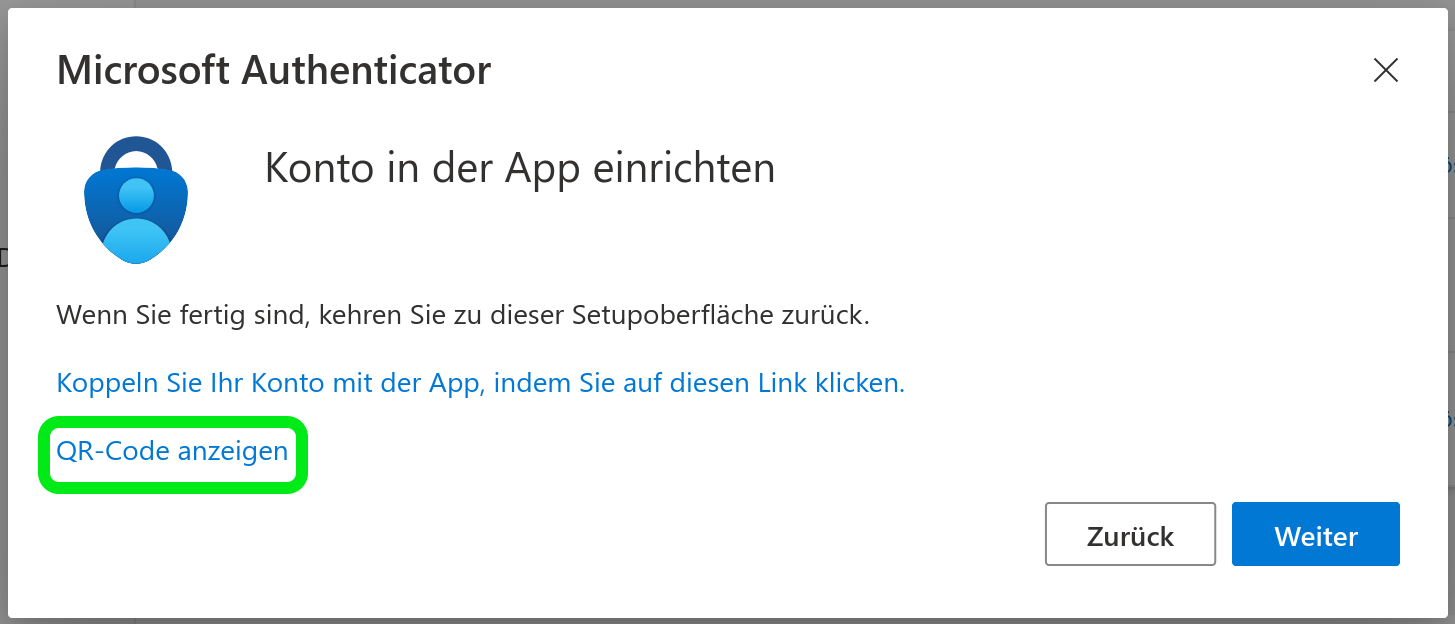
- "QR-Code Anzeigen"
- Die App "Microsoft Authenticator" (von "Microsoft Corporation") auf dem Smartphone aus dem Apple AppStore (Download) bzw. Google PlayStore (Downlod) herunterladen
→ Tipp: Auf dienstlichen iOS/iPadOS Geräten, die bereits über das Basis-Management eingerichtet oder vom RZ ausgegeben wurden, ist diese App vorinstalliertAndroid (PlayStore) iOS/iPadOS (Apple Appstore) 

- Die App öffnen und evtl. Rückfragen bezüglich Datenschutz bestätigen, dabei Nutzungsdaten nicht freigeben

- Wird die App das erste Mal genutzt, empfehlen wir direkt die Option "QR-Code scannen" zu nutzen.
→ Nutzen Sie bereits den Microsoft Authenticator? Dann einfach über das Plus-Symbol rechts oben ein neues "Geschäfts- oder Schulkonto" hinzufügen und "QR-Code scannen" wählen
- Die Nutzung der Kamera zustimmen

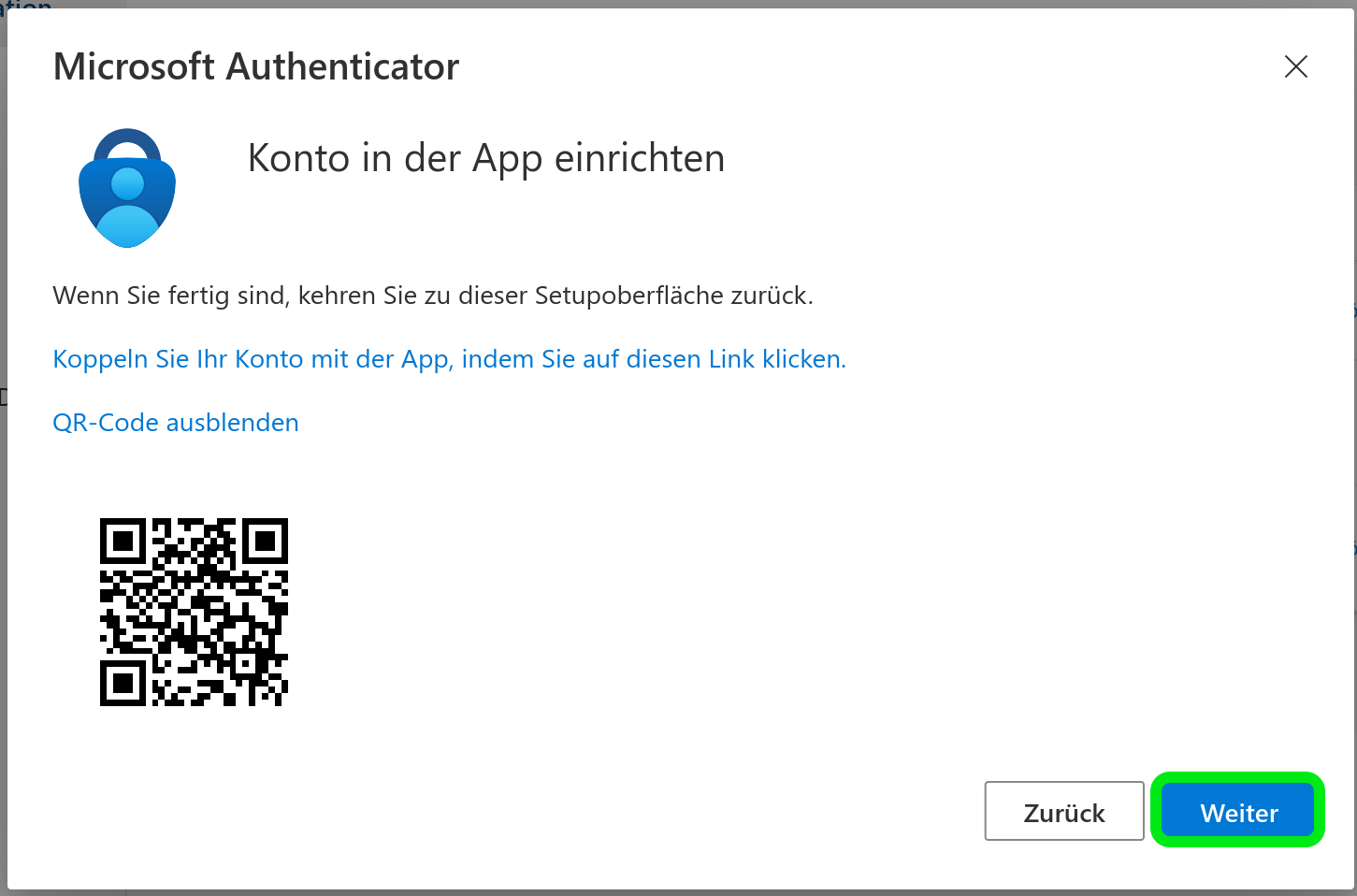
- Den angezeigten QR-Code mit der Kamera des Smartphone scannen
- Ggf. dem anzeigen von Mitteilungen/Benachrichtigungen zustimmen

- Sobald das Konto hinzugefügt ist auf der Webseite mit "Weiter" bestätigen
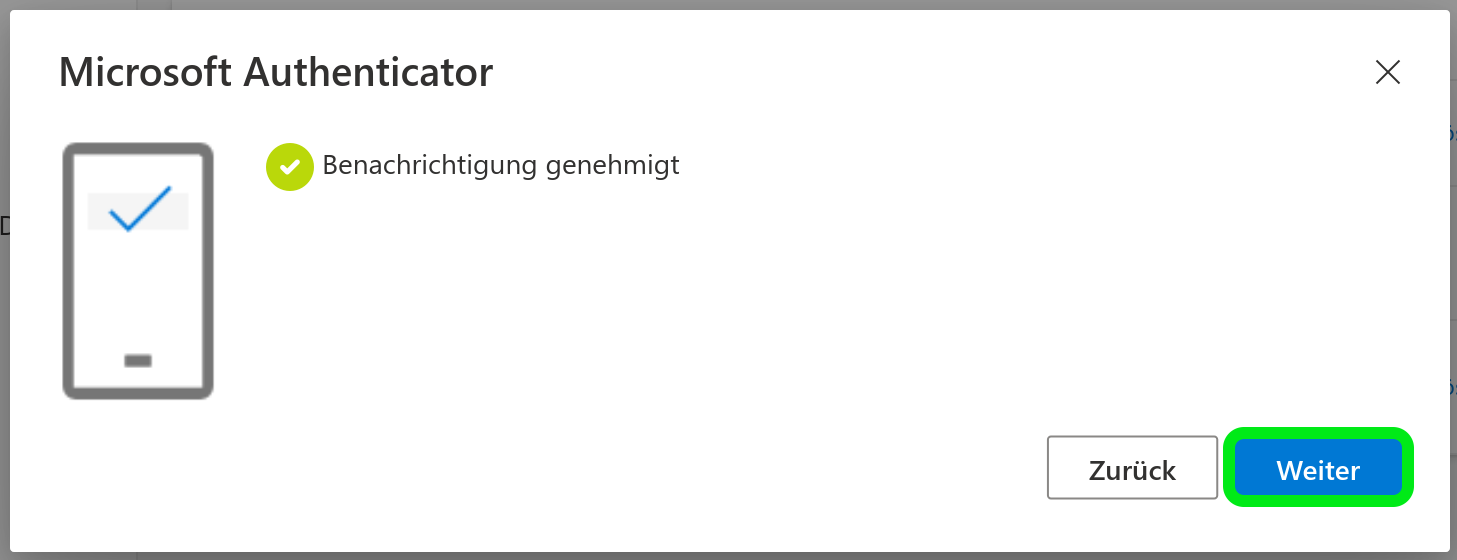
- Es wird eine Nummer angezeigt, diese in der App am Smartphone in das Benachrichtigungsfenster eingeben und mit "Ja" bestätigen


- Mit "Weiter" bestätigen - die Einrichtung ist abgeschlossen
Sicherheitsschlüssel (Passkey)
Über die Accounteinstellungen des Microsoft-Accounts können Beschäftigte der Uni Augsburg die Registrierung eines Sicherheitsschlüssels (Fido2-Key) als zweiten Faktor vornehmen.
Es stehen lediglich Hardware-gebundene Schlüssel (etwa Yubikeys, Swissbit iShield, NitroKey) als Option zur Verfügung.
Yubikeys
Hardware-Schlüssel sind ein zusätzliches Peripherie-Gerät. Für die Nutzung von Yubikeys können sich Beschäftigte an Ihre zuständige DV-Betreuung wenden, dort erhalten Sie entsprechende Hardware und Support.
- "Sicherheitsinformationen"
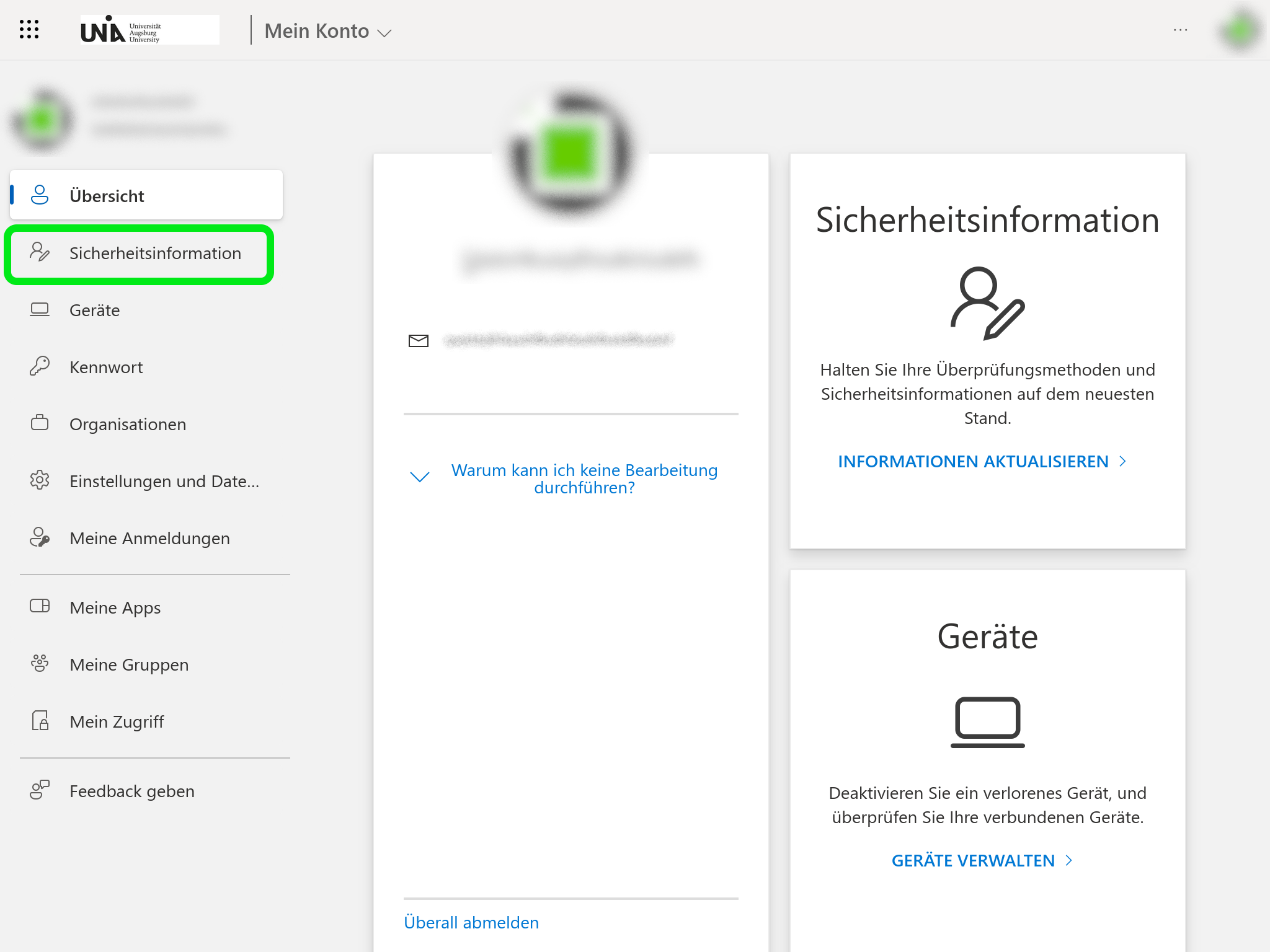
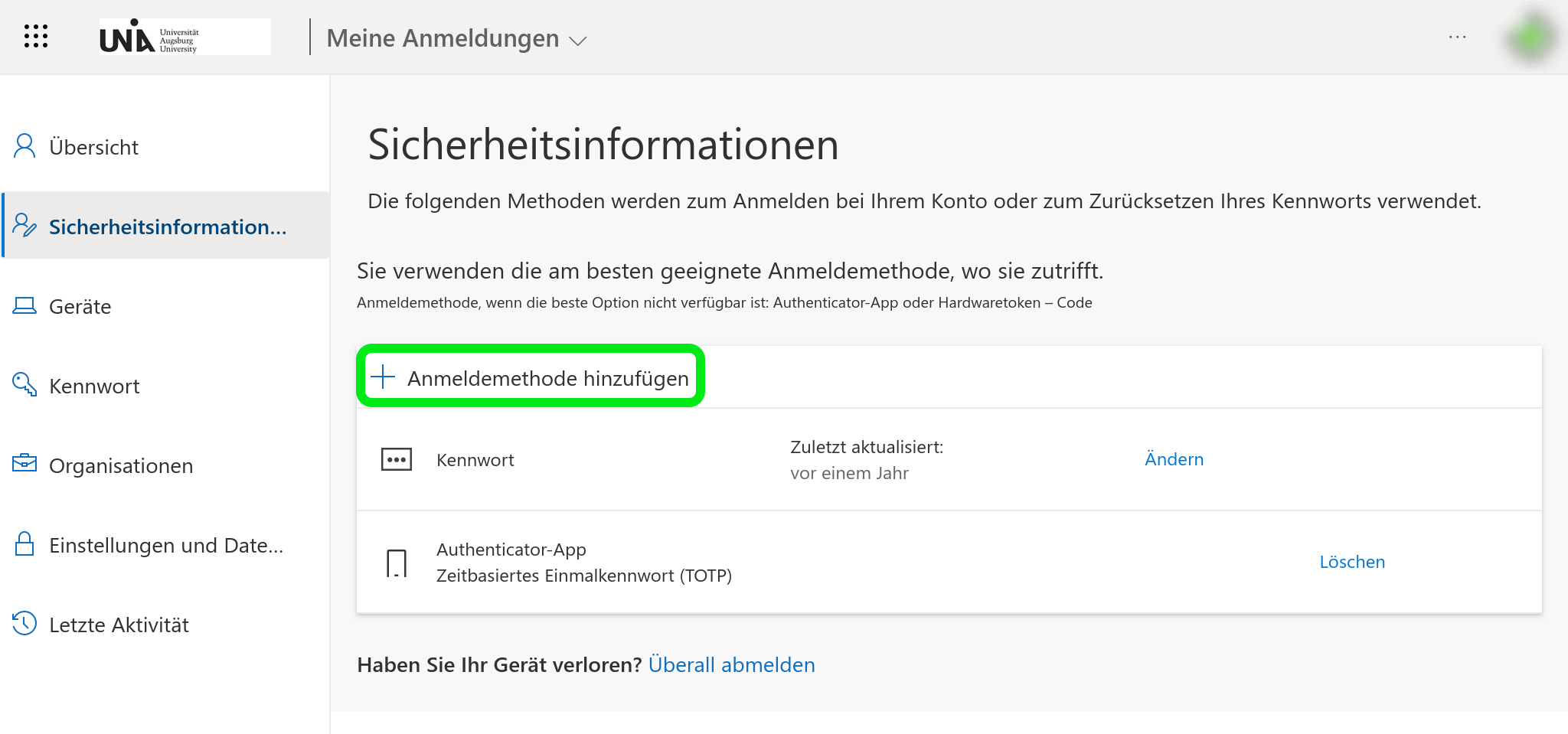
- "Anmeldemethode hinzufügen"
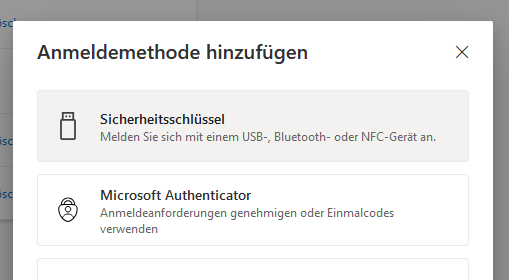
- "Sicherheitsschlüssel" gewünschte Methode aus dem Dropdown-Menü auswählen
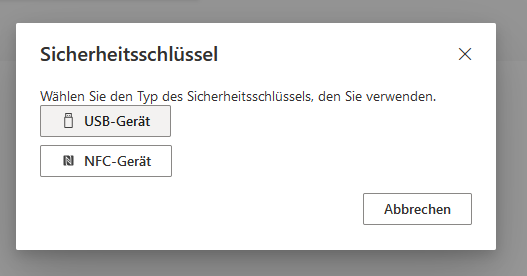
- "USB-Gerät" auswählen
- "Weiter"
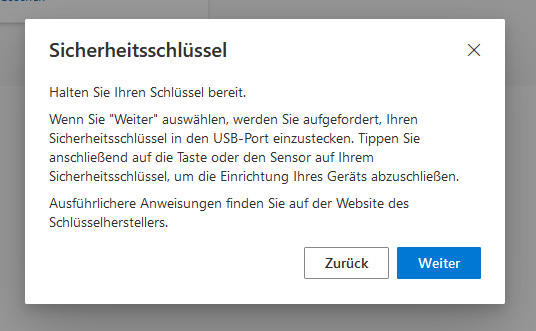
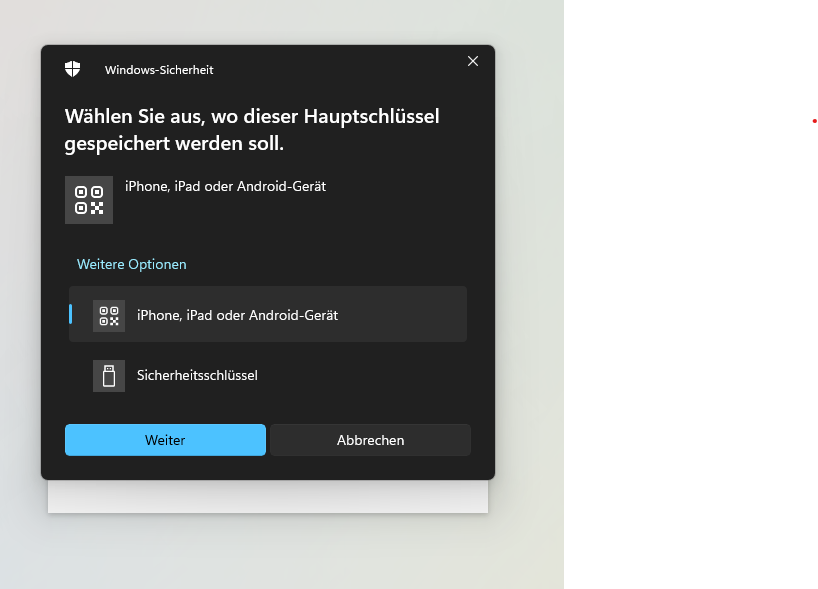
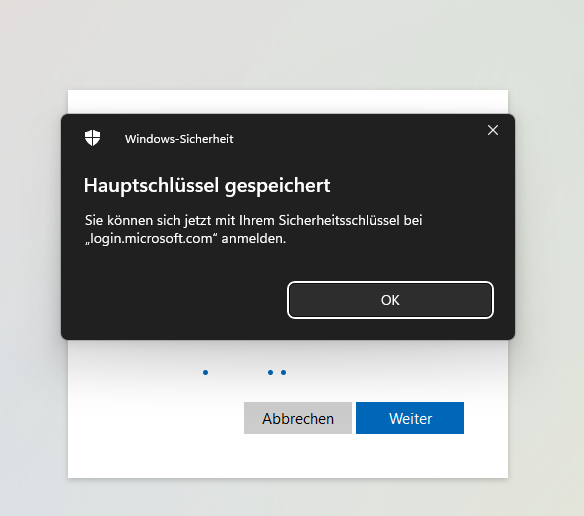
- ggf. Sicherheitsmeldung (Windows) bestätigen: Auswahl Sicherheitsschlüssel und "Weiter"
- Jeweils mit "OK" bestätigen
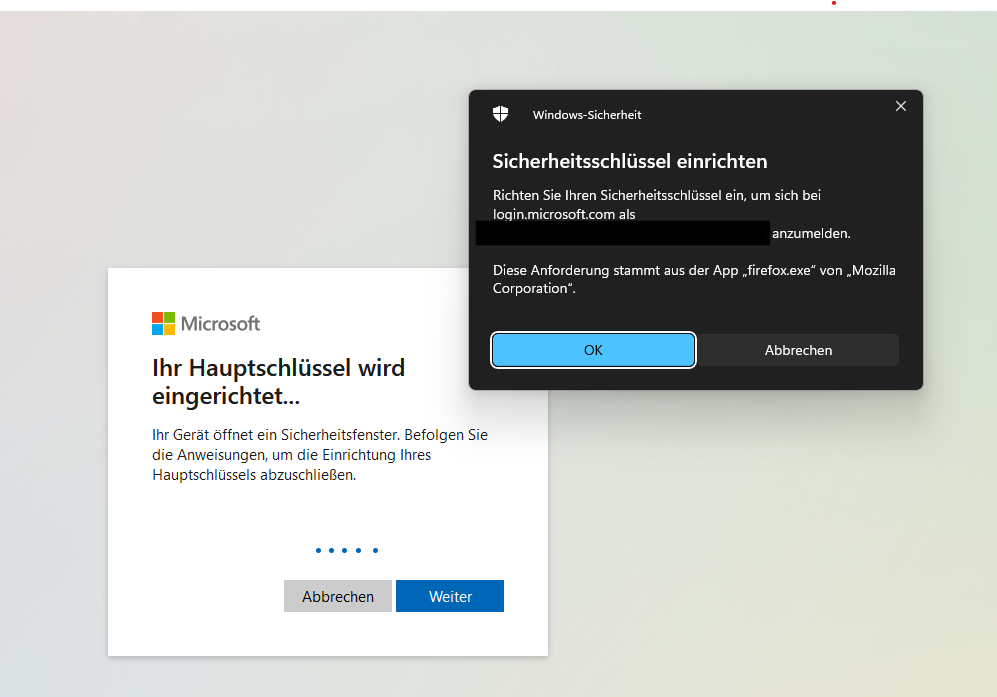
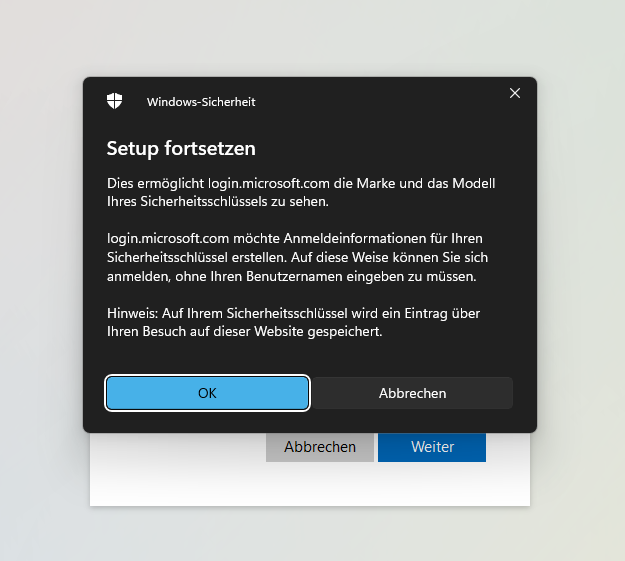
- Wird der Schlüssel zum ersten mal verwendet eine PIN/Passwort für Schlüssel vergeben (wird später immer bei einer Anmeldung benötigt) und mit "OK" bestätigen.
→ Der PIN/Passwort sind nicht wiederherstellbar, d.h. bei vergessenem PIN/Passworts muss Schlüssel komplett zurückgesetzt werden.
→ Beim Zurücksetzen gehen alle auf dem Schlüssel befindlichen Zugangsdaten verloren! Notieren Sie diesen PIN daher an einem sicheren Ort! - Haben Sie bereits eine PIN festgelegt wird diese nun abgefragt
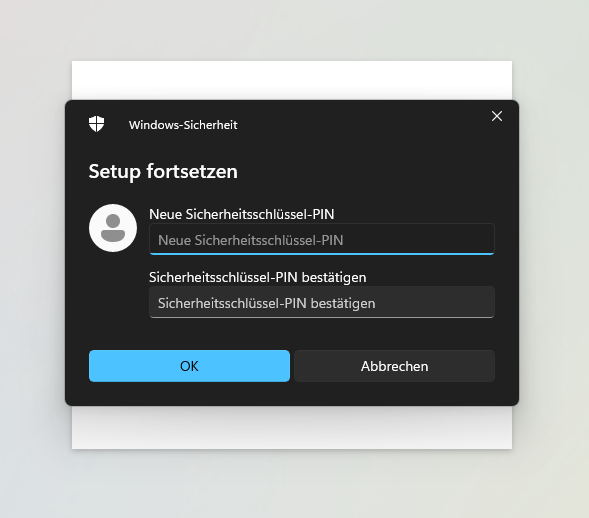
- "OK"
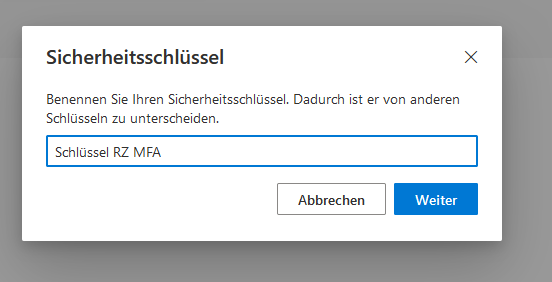
- Aussagekräftigen Namen für Schlüssel vergeben und "Weiter"
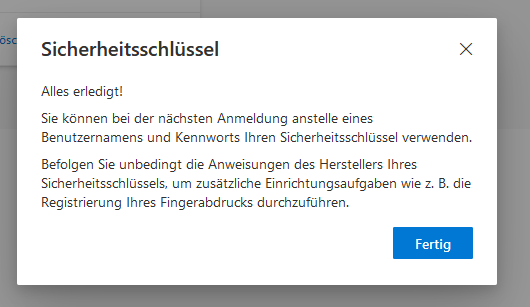
- "Fertig"
KeePassXC Passwortmanager (TOTP)
KeePassXC ist ein kostenloser und quelloffener Passwort-Manager mit vielen nützlichen Funktionen zur sicheren und komfortablen Speicherung von Passwörtern und anderen Zugangsdaten. Auch ist die Software in der Lage Einmal-Passwörter sog. TOTPs zu erzeugen, welche als zweiter Faktor für den dienstlichen Microsoft Account genutzt werden können. KeePassXC erfüllt dabei die Rolle einer Authentifikator-App:
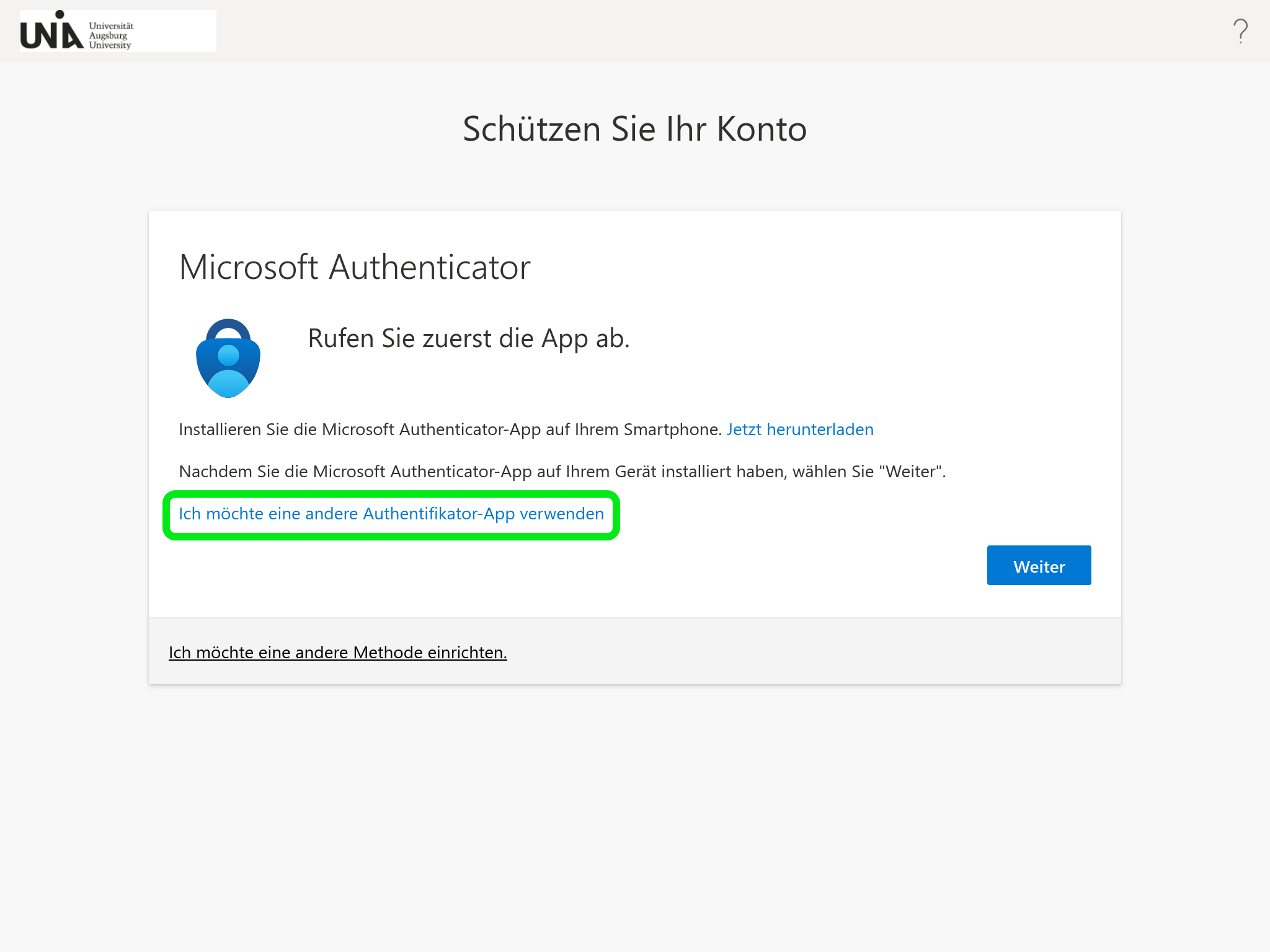
- Den Link "Ich möchte eine andere Authentifikator-App verwenden" wählen
- "Weiter"

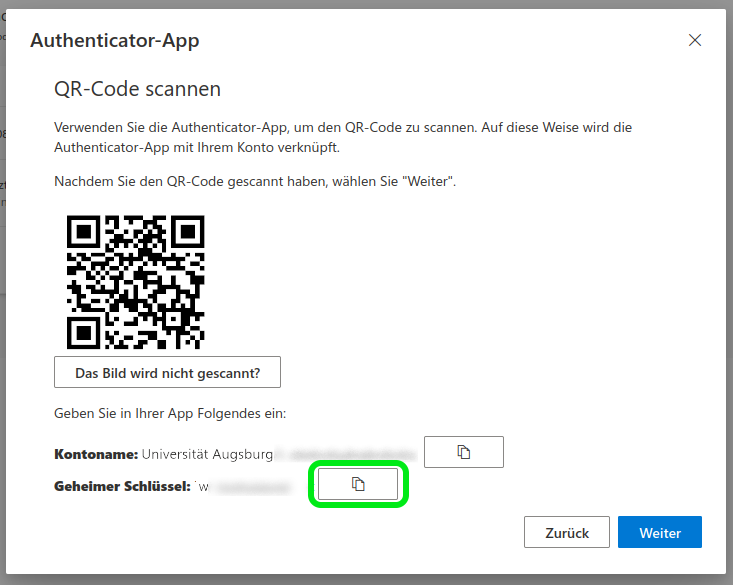
- "Das Bild wird nicht gescannt?" wählen

- Den angezeigten geheimen Schlüssel kopieren
- Bestehende KeePassXC Datenbank öffnen und entsperren
→ Für vom Rechenzentrum bereitgestellte Arbeitsplätze (ZV, Med, Präsidium, CCR,...) findet sich eine Anleitung zum Anlegen und nutzen einer solchen Datenbank im RZ-Service-Bereich - Einen neuen Eintrag über das "+"-Symbol für das Microsoft-Konto anlegen.
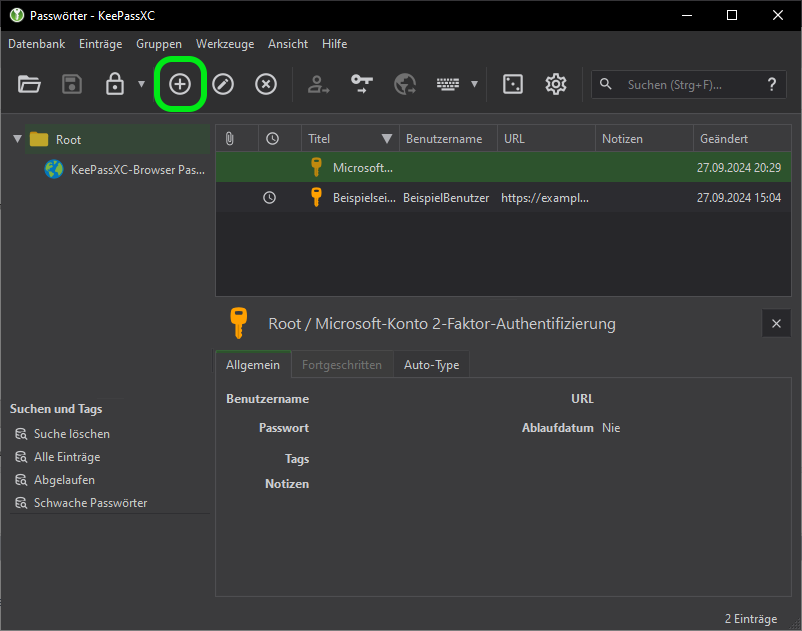
- Es wird nur der Titel benötigt - Passwort und Benutzername können leer gelassen werden
- Mit "OK", den Eintrag abspeichern

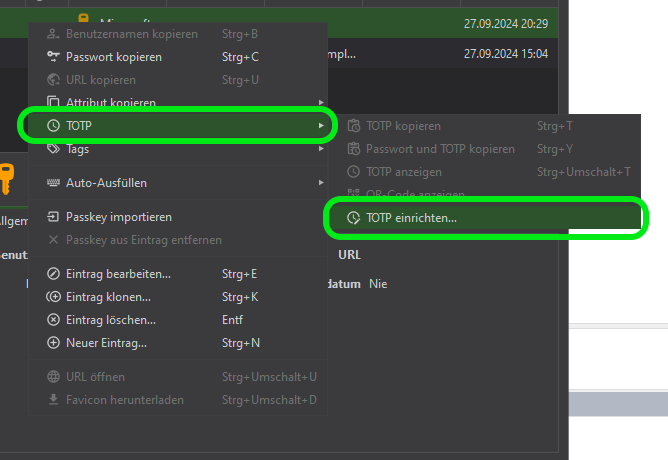
- Den neuen Eintrag mit der rechten Maustaste wählen um das Kontextmenü anzuzeigen
- Den Punkt "TOTP" ausklappen
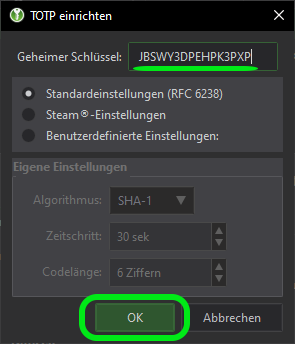
- "TOTP einrichten"
- Den zuvor kopierten geheimen Schlüssel in das Eingabefeld einfügen
- "OK"
- Auf der Webseite die Einrichtung mit "Weiter" bestätigen

- Zur Kontrolle wird nun ein OTP-Code abgefragt
- Dieser Code kann in KeePassXC entweder durch das Uhr-Symbol bei gewählten Eintrag angezeigt, oder durch das Kontextmenü direkt kopiert werden
→ Das angezeigte Leerzeichen dient nur zur Formatierung und gehört nicht zum Code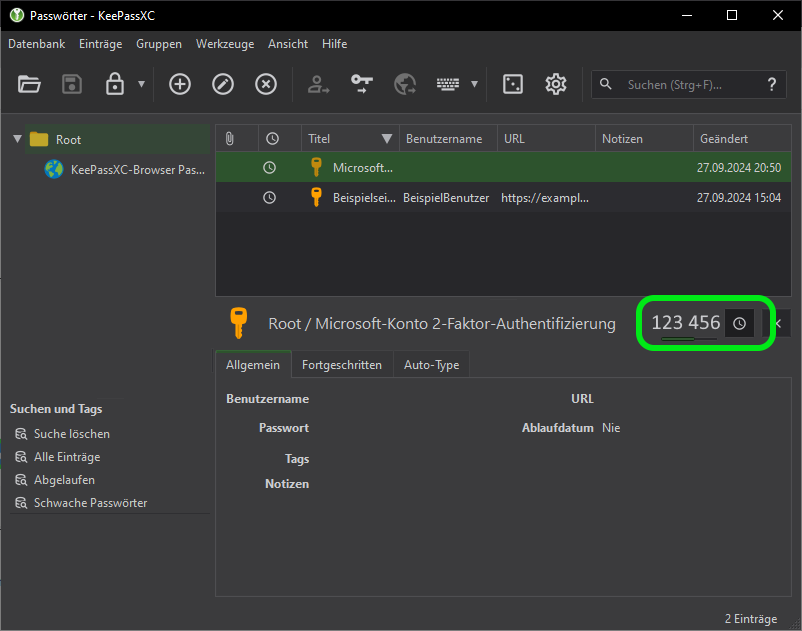
- Nach Eingabe des Codes nochmals mit "Weiter" bestätigen.
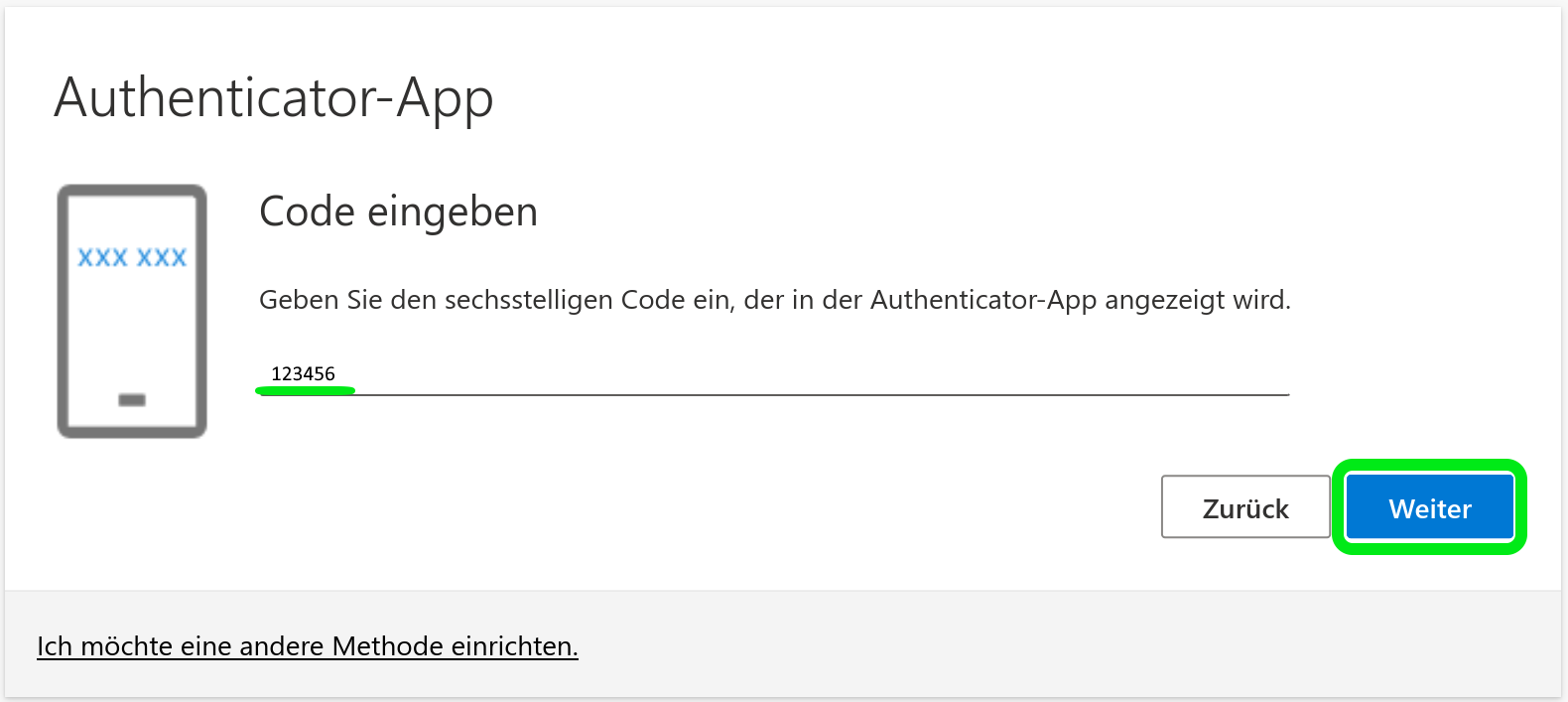
- Die Einrichtung ist abgeschlossen
(Dienstliche) Telefonnummer
Telefon 2-Faktor-Anmeldung abgekündigt
Microsoft hat die 2-Faktor-Anmeldung per Telefonanruf (und SMS) zum 01.02.2027 abgekündigt.
Nutzer, die diese Methode nach dem 01.09.2026 noch nutzen, erhalten automatisch eine Aufforderung, eine andere 2-Faktor-Methode zu hinterlegen: Das RZ empfiehlt die Nutzung der Microsoft Authenticator App (siehe oben).
Für Beschäftigte besteht die Möglichkeit, eine Telefonnummer als Ziel für den zweiten Faktor zu wählen - entweder als einzelne Methode oder als Backup zur OTP-App.
Hinweis: Ist/wird ausschließlich eine Telefonnummer als zweiter Faktor eingerichtet können bei der Anmeldung an Diensten zusätzliche Dialoge angezeigt werden, die zur Nutzung der Microsoft Authenticator App auffordern dazu mehr im FAQ: Bekannte Meldungen und Fehler
- Die Vorwahl für Deutschland (+49) auswählen und die Telefonnummer eintragen
- "Weiter"
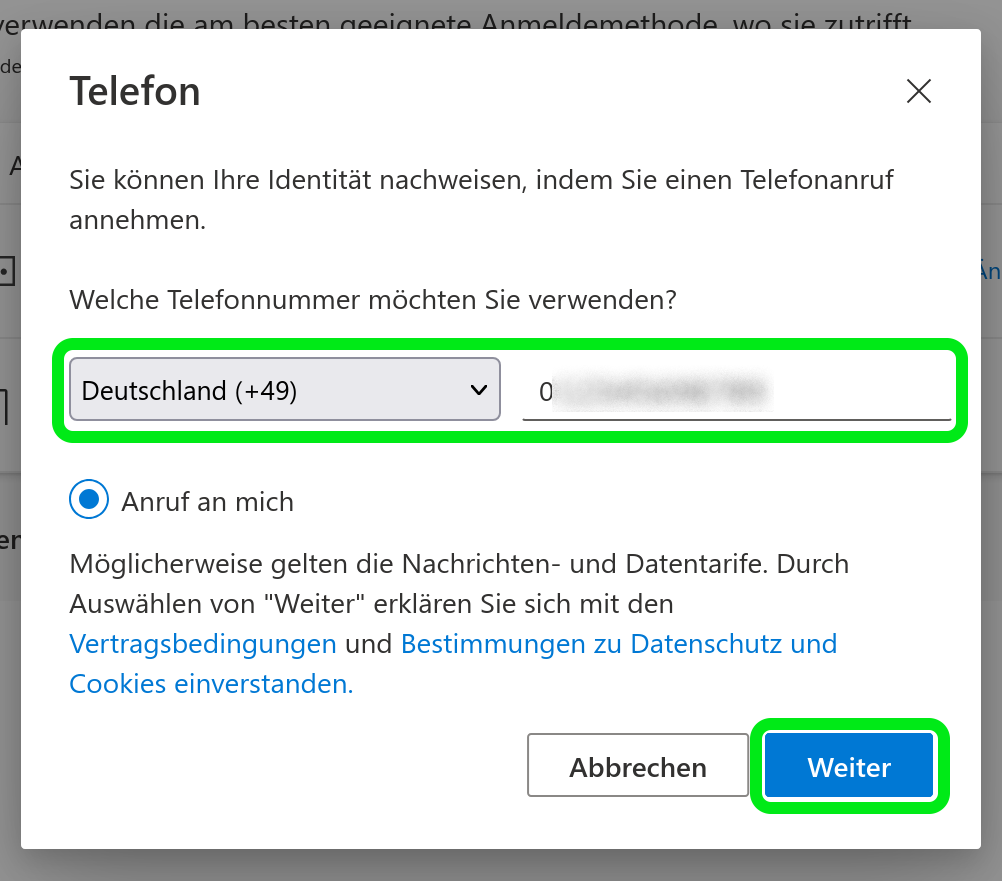
- Die eingetragene Rufnummer erhält nun einen Anruf zur Bestätigung
- Der Anruf muss angenommen werden und nach der Bandansage mit einem Tastendruck auf die Raute-Taste "#" bestätigt werden
- Die Telefonmethode ist damit erfolgreich eingerichtet
Hinweise zu weiteren TOTP-Clients
Info
Grundsätzlich kann jeder TOTP-Client mit dem Microsoft-Account genutzt werden, z.B. FreeOTP, Ente Auth, Yubico Authenticator, Google Authenticator etc. Wenn Sie Hilfe benötigen, sprechen Sie mit der Ihrer zuständigen DV-Betreuung, welche weiteren TOTP-Clients unterstützt werden können.
