Information
At the moment there is no geteduroam app for devices running macOS. Therefore Apple users have to manually install a network profile on their MacBooks which has to be renewed each semester. The renewal process includes deleting the existing profile and installing a new one provided by our geteduroam server.
Tipp
For the setup process an internet connection is necessary - you can use mobile data or your network at home. If you are on campus you can also use the public @BayernWLAN network for this.
Screenshot-Language
The screenshots on our pages are currently created with German language settings. You may encounter slight deviations from your device but controls should still be the same. As an employee if you still encounter problems ask your faculty IT-department for further help. Students receive help at the "ZEBRA" Helpdesk or by creating a ticket online at our Helpdesk portal: https://support.rz.uni-augsburg.de/servicedesk
Install the eduroam profile
If a profile for eduroam is already installed beforehand, e.g. from our old infrastructure or another educational or research institution, it must be removed before proceeding with the installation. To do this, simply follow the instructions in the section below and select the old profile (usually named ‘eduroam’) for deletion instead.
- Open the geteduroam portal: https://geteduroam.rz.uni-augsburg.de/profiles/new/apple-mobileconfig/
- Sign in using an university Microsoft account, a Passkey or RZ-Kennung
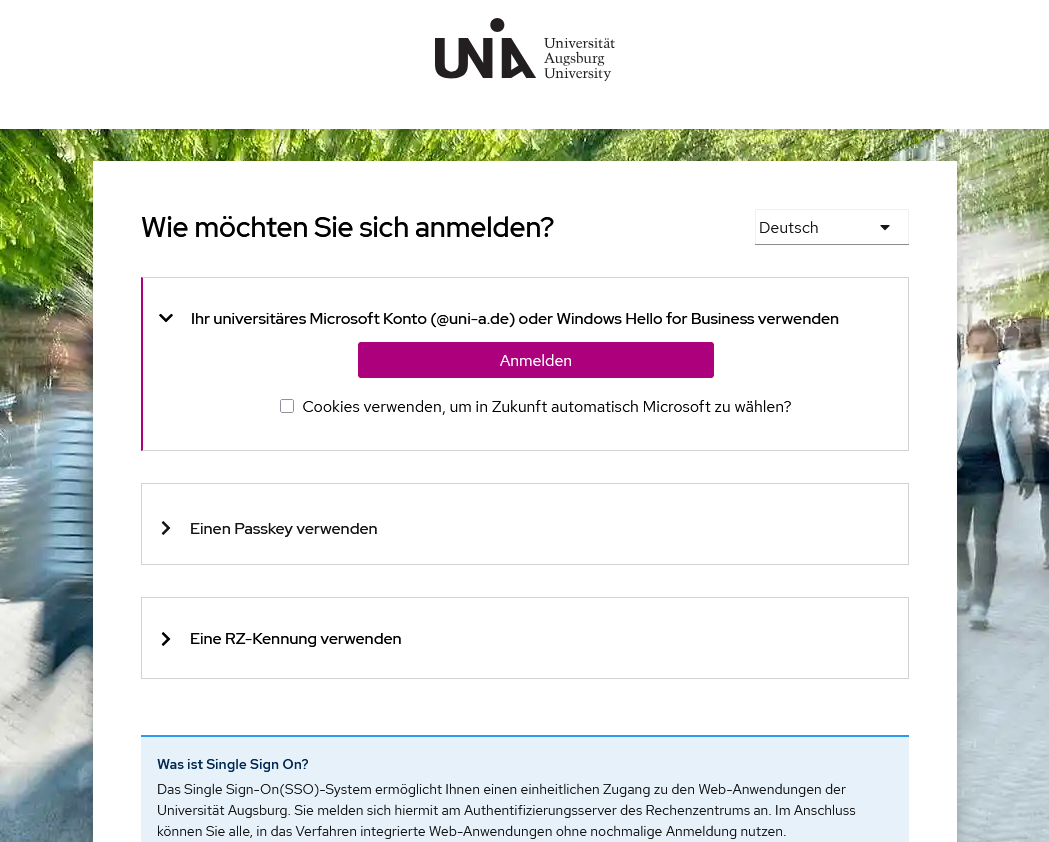
- Accept the data transmission to our geteduroam server, "Ja, ich stimme zu" (Yes, i accept)

- Open the downloaded configuration file
→ Safari will run the file immediately after you granted permission to do so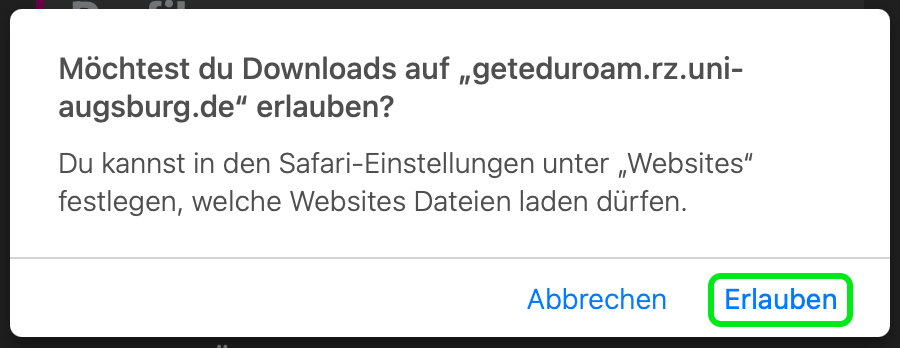
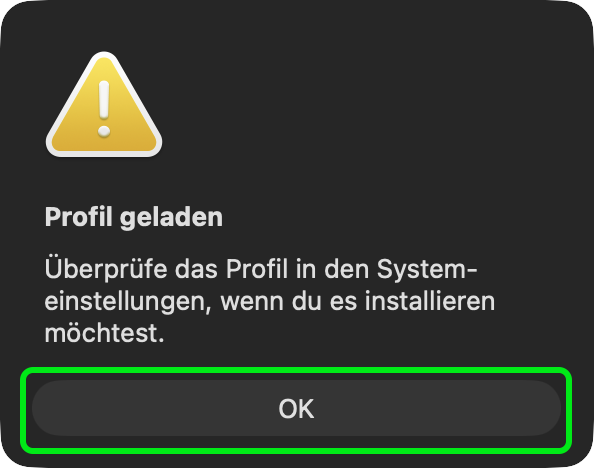
- Wait for the profile to load and hit "OK"
- Open the System Settings on your macOS device
- "General" → "Device Management"
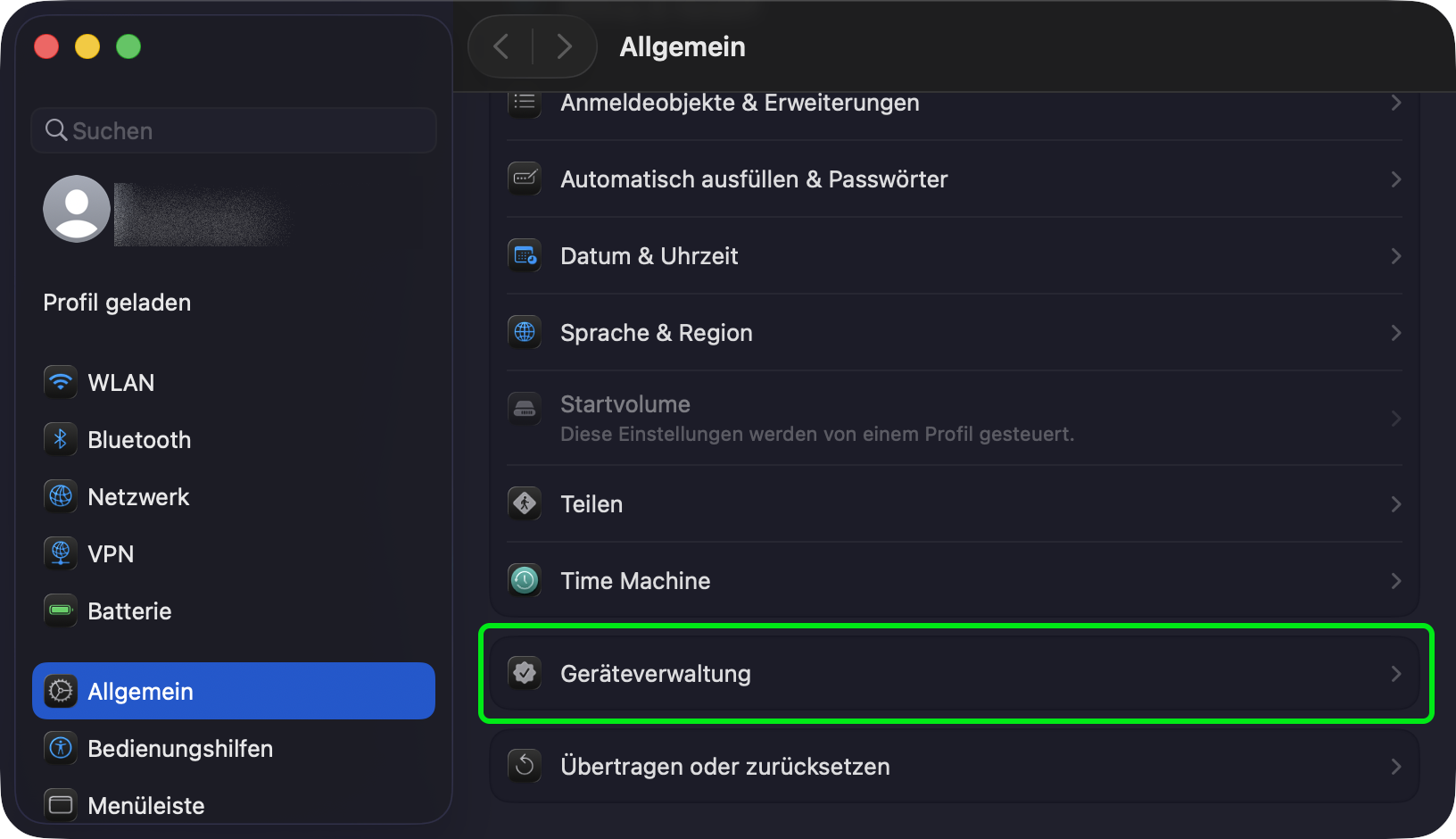
- Open the loaded profile "University of Augsburg" with a double click

- "Install"
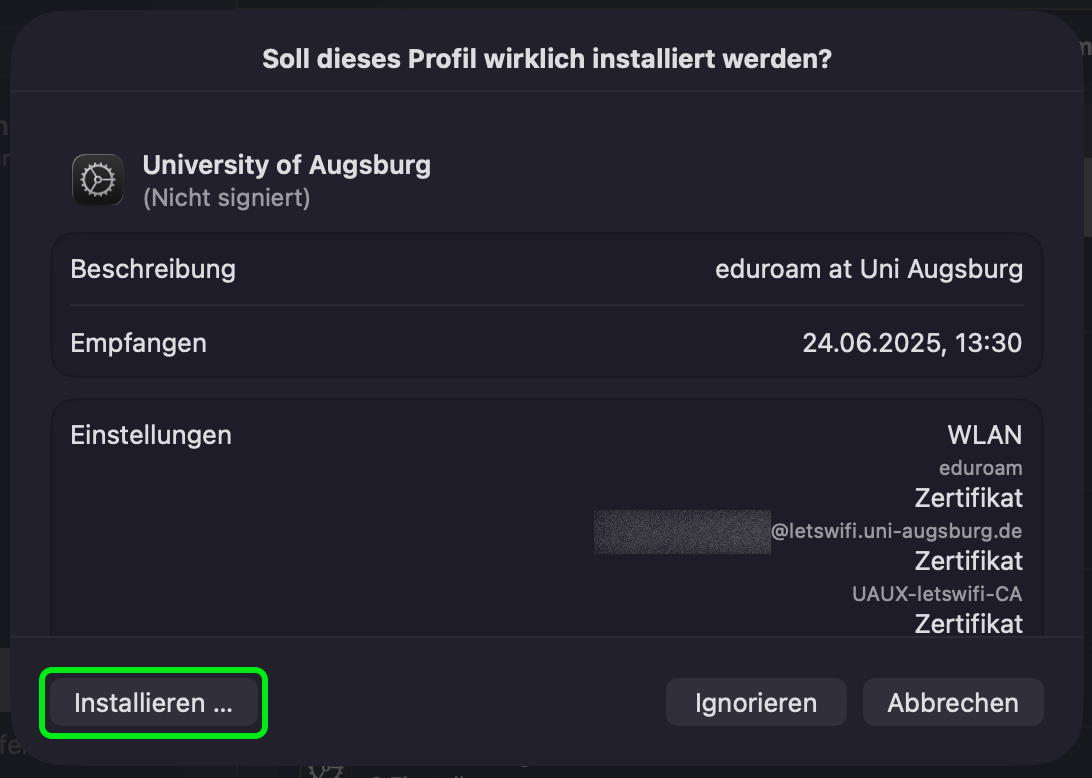
- "Install"

- Provide your (local) credentials for your MacBook and hit "OK"

- Connect to "eduroam"
Deleting the eduroam profile (for renewal process)
- Open the System Settings on your macOS device
- "General" → "Device Management"
- Select the installed profile "University of Augsburg"
- Hit the "-" minus symbol to delete the profile (bottom left corner)

- "Remove"
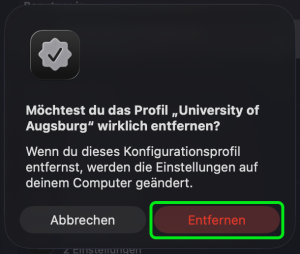
- Provide your (local) credentials for your MacBook and hit "OK"
- You now can follow the guide above to install a new eduroam profile
