Topics
For the creation of simple online forms it is sufficient to use the three specific ConfiForms macros (1), (2) and (5).
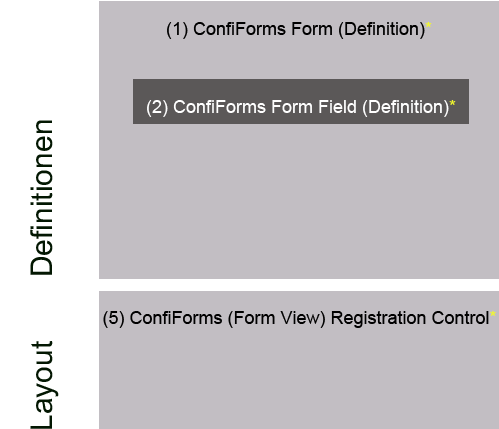
1) Insert ConfiForms Form (Definition) macro
- Go to the page in your wiki- or form-space where you want to insert the online form.
- Select the macro "ConfiForms Form (Definition)", make the settings according to the following table. Then click on the "Insert" button.
For data protection reasons, all uploads with personal data (e.g. CVs etc.) in online forms with upload fields must be protected from indexing or caching by search engines such as Google. For this it is absolutely necessary to use the basic settings from the following table.
Feld / Checkbox | Einstellung |
ConfiForms Form name * | A name of your choice |
Enable secure storage for attachments (files) | Active |
Additional user names (or user groups) with administrator permissions for this form | TUM group of form administrators, TUM group(s) with person(s) who are allowed to view the attachments of the online form. Enter several groups separated by commas |
Anonymous form | Active |
| Bypass attachment upload permission | Active |
For forms that contain upload fields, since the current ConfiForms version, it is mandatory to make the following additional setting in the "ConfiForms Form (Definition)" macro so that files can be uploaded by users.
Feld / Checkbox | Einstellung |
Bypass attachment upload permission | Active |
Basic settings in the "ConfiForms Form (Definition)" macro
2) Insert ConfiForms Field (Definition) macro
If the macro "ConfiForms Form (Definition) from step 1) above is inserted into the page, the definition of the form content (e. g. input fields, radio buttons, checkboxes) is the next step.
- Within the "ConfiForms Form (Definition)" macro, click with your mouse in the area framed in green as shown in the following figure.

Select the macro "ConfiForms Form Field (Definition)", make the settings according to the following table. Then click on the "Insert" button.
Field / Checkbox
Data / Setting
Field name *
A unique name description of your choice
Field label *
A unique label description of your choice
"Required" * checked
Field is mandatory
"Required" * unchecked
Field is not mandatory
Fieldtype
Type
Basic settings in the macro „Confiforms Form Field (Definition)“
- Execute step 1. and 2. until all your desired fields are defined.
3) Insert ConfiForms Registration Control macro
Once the steps 1) and 2) have been completed, the macro for displaying the form content (layout, fields, buttons) must be inserted next.
- Click with your mouse below the macro "ConfiForms Form (Definition)" at the position where you want to insert the macro.
- Select the macro „ConfiForms Registration Control“, set the settings from the following table and finally click on "Save".
Field | Setting |
ConfiForms Form name * | Name of your form (corresponds to the same name that you assigned in the macro "ConfiForms Form (Definition)" in the field "ConfiForms Form name") |
Checkbox „Embedded or Dialog mode? *“ | Active |
Override label for form ‚Save‘ button | Description of your choice |
Message to show after a record been created | A message of your choice, which the user receives after clicking the send button |
Basic settings in the macro „ConfiForms Registration Control“
4) Insert privacy policy
If personal data are requested in the online form, it is mandatory to insert on the one hand a form element (mandatory field) to confirm the privacy policy by the user AND on the other hand a data protection declaration in text form.
Überblick
Inhalte
Aufgabenbericht