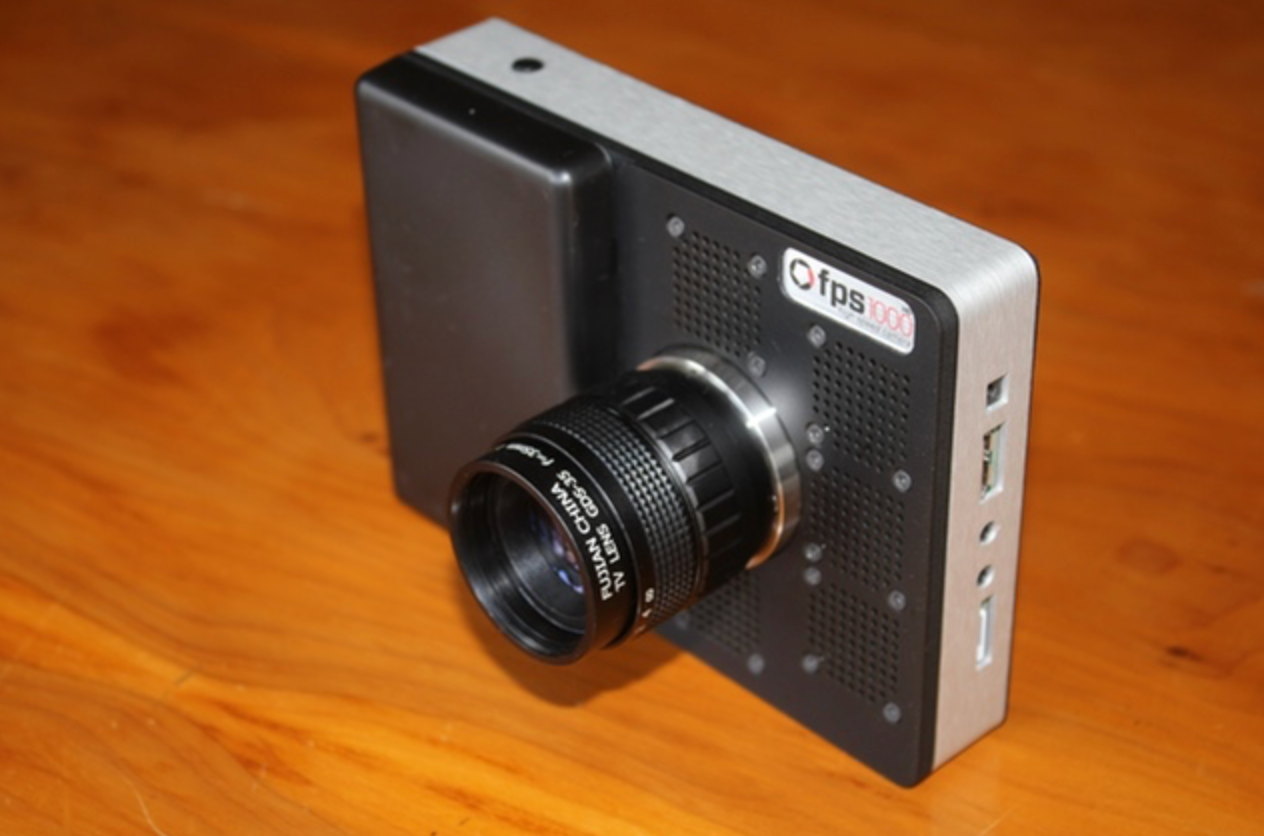

The fps1000 is a high-speed camera capable of continuous recording at 1,000 fps with no compression or frame skipping recording on a 256Gbytes internal memory (ca. 1-2 minutes of recording).
The output frames are saved as raw data in industry standard DNG format with each pixel in 12-bit color depth.
Here is an example video captured with the camera and the manufacturer link.
Currently, we have two cameras, one in colors and the other in black and white.
Working with Camera
Powering:
The fps1000 runs from 2 Lithium Ion batteries. The manufacturer recommended two batteries, LG HE41865 and Samsung INR18650.
To switch on: press the power button on top of the camera gently once (the powering up may take few seconds).
To switch off: press the power button for about 6 seconds.
Screen Layout:
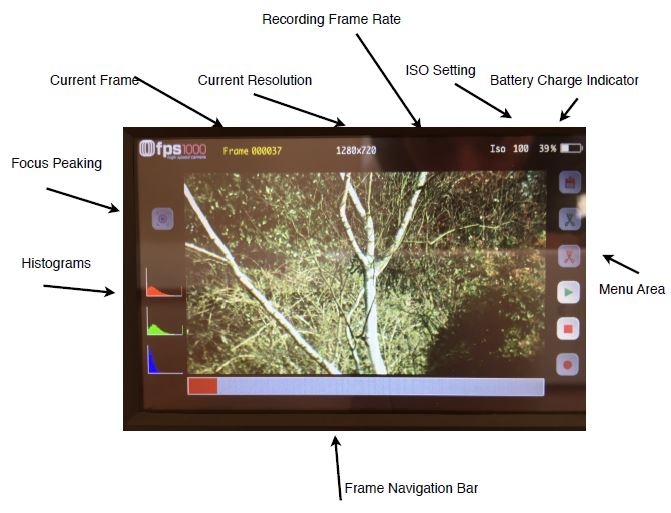
- The displaying of the recorded video on the screen is in lower resolution than the output real image.
- Tearing may be seen on the display, this won't be seen in the output image. This is only because the preview cannot keep up with the high rate of captured frames.
- On the most left you can see the Histograms: displaying the sensor value for each color (For the best exposure the histogram should be flat and wide, covering as many of the brightness levels as possible.)
- The frame navigation bar at the bottom represents the stored image non-volatile memory(Touch it or slide your finger on it, to navigate through the captured frames and the still available memory).
- At the top is the information area.You can see information about frame resolution, the number of the frame being currently recorded or replayed, and battery charge indicator.
- On the most right, you can find the toolbox for capturing images, replaying and saving them to the SD-Card.
Recording
Enter recording mode: press the recording button
 once .
To start recording: press it again or press the power button once.
OR
press the power button twice to directly start recording skipping steps 1&2.To pause & resume: press the record button or the power button once.
- Press the stop button
 to exit recording mode.
Replaying
 press the replay button and the frames will be played in slow motion.
- touch center of the display screen to pause.
- slide a finger from right to left or left to right to step forward or backward, the longer the swipe the faster the replay.
Memory Partitioning (cut in/cut out)

 used in conjunction with record and save operations to select regions of the frame buffer.
- Touch a point on the navigation bar, then pressing the cut in / out button once will select a point and pressing again at the same position will de-select it.
- You can navigate and press the buttons as many times as required to select the required point.
- The cut in point: is the point the camera will start recording or saving from till it reaches the end point(if you continue recording it will loop around the same partition).
Memory (Saving)
- First, you have to select the section of the memory to save to(cut in/cut out).
- press the save button
 the region to be saved will be in gray and turn to yellow as the saving progress (the process may take some time, So try to be patient
  )
) you can pause the save process to do anything then resume it again using the save button(If you are recording while pausing the save process, please make sure to choose another area in the memory so as not to overwrite your yet unsaved frames).
- If the save operation does not proceed then try ejecting and re-inserting the SD card.
Data Processing
- Each new clip is saved into a separate numbered folder on the disk. Within the folder each frame is saved as a numbered image, the number being the frame number within the image memory of the saved image.
- The images are in DNG format.c
- The software recommended by the manufacturer for processing is Raw Therapee, Adobe Lightroom or Final Cut Pro.
Triggers
two 2.5mm jack sockets on the side of the camera - a trigger in and a trigger out.
Options to remote control the camera:
- Connect a standard camera trigger.
- generate a low voltage train of pulses on the trigger-in pin, the camera will capture one frame with each pulse.
- The trigger-out generates an output pulse every time the camera captures a frame, this can be used as an acknowledgment feedback or a controller to another camera so they can work simultaneously.
Software Updates
Please check the userGuide for steps.
Very Important note: make sure the batteries are fully charged before updating.
(Cameras were updated with the newest software release on 21.3.2017)
Highlighted userGuide
you can check this version of the userGuide for highlighted recommended parts.