Git repositories @ NST
We encourage every running project in NST to be maintained using Git as the main tool for version control.
Guidelines:
- in order to avoid problems with accessing the repository from remote locations we decided to allow the usage of Bitbucket, https://bitbucket.org instead of using a local TUM network machine to store the repositories;
- this will allow you to easily create unlimited private repositories for your projects and it's important to grant admin (read/write) access to your project supervisor because a snapshot of the repository will be mirrored on our local NST machines;
- in order to keep the repositories clean, small and fast to access we recommend not to upload other file types than source code (e.g.: binaries, pictures, movies, large pdfs, archives);
An extended version of this tutorial can be downloaded here
The guide contains also installation and usage instructions for:
- Linux / MacOS / Cygwin on Windows Git command line usage tutorial
- Windows Git setup using Tortoise and msysGit
- Online Bitbucket setup
Git basics
A version control system is a software tool that allows to record changes brought in time to a file or a set of files in order to be able to recall specific versions later.
Using this system one can:
- revert files/ sets of files to a previous state
- review the changes made over time
- work together with other developers and minimize edit conflicts
- get little overhead by storing differences instead of full copies of files
- backup files automatically
The core of the version control system is the repository.
The generic architecture of a distributed version control system:
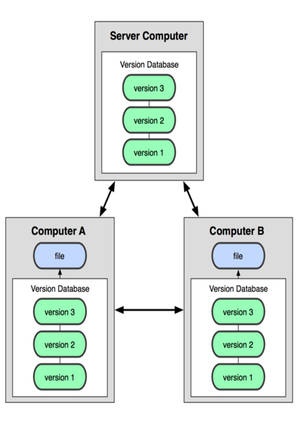
Git is a fully distributed version control system, widely used because of its speed, efficiency in handling large projects and the powerful branching mechanism which ensures a good management of many parallel branches.
Git workflow diagram:
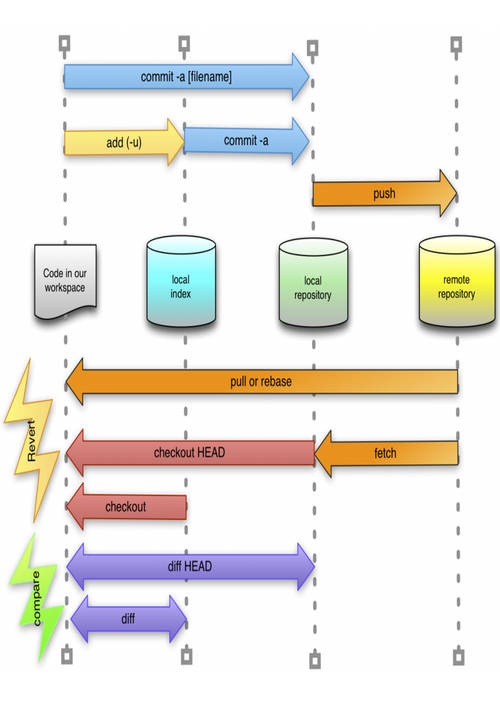
Understanding the Git workflow:
Assuming you have a repository (empty or not) on a remote server accessible via Internet or a local network. There are three possible scenarios.
If the remote repository is empty (not populated with files yet) you have to add the files you want in your project from your workspace to the local index (keeps a record of repository files, also called stage) and then commit them to the local repository. The local repository has the same structure as the remote repository. When everything is committed in the local repository you simply push the files into the remote repository. Right now the remote repository has the same contents as you local repository.
If the remote repository is populated with files the first step is to get a snapshot of your remote repository on your local machine, so that you will get a working copy on your machine. This operation can be performed by cloning the remote repository. If you had already a local copy, in order to get the latest snapshot of the remote repository you just need to fetch it.
Assuming that you added some changes in the local repository files and you want to make these changes recorded in the remote repository, as to be available for others or as a major change to be recorded the following procedure must be performed.
First, add the modified files to the local index (stage), commit them to the local repository and then push them into the remote repository. If there is something that you are not sure that it should be pushed to the remote repository but it is committed in your local repository, you can check out the specific commit (changeset) and rework it, by reverting the commit. The commits are stored in a stack like structure in the repository (local/remote) and you can access the latest change reference (HEAD) or any of the earlier entries. The entries are saved with a timestamp for sequencing them time and with a hash (SHA-1) for their internal storage in Git. After modifying the files the procedure repeats itself, by adding and committing the changes to the local repository and then if needed to the remote repository.
In order to visualize the changes between the local repository version and the latest changes added to the files in the workspace, we can use a difference viewer that can display differences to the local repository (committed changes) or to the local index (modified but not committed to the repository yet ).
Small guide of useful Git commands
The following commands are usually entered in the command line, but as there are visual tools that allow not only to visualize but also to operate on the repository, these commands are present also in the GUI clients. Sometimes, if you are coding in an IDE there are plug-ins or add-ons to integrate the use of Git in your development environment.
git help command
Returns the information about command.
git clone
Gets a snapshot of the remote repository on the local machine.
git fetch
Gets the latest changes from the remote repository when a cloned snapshot is already on the local machine.
git rebase
Merges you local commits with commits from the remote repository by first applying remote commits and then applying your commits on top. During a rebase, you may encounter conflicts which have to be resolved manually.
git log
Returns the stack-like formatted list of commits in the local repository. This list is synchronized with the remote repository when pushing/ pulling/ cloning. The information returned by this logging command contains the unique hash key (SHA-1) representing each commit, the author and date of the commit and also the commit message.
git status
Returns the status of the files (the content) of the current working directory. Usually git status gives also hints on how to change the status of the files in the working directory to be able to add/ commit/ push the changes properly. Some examples of repository file statuses: not updated, updated in index, unmerged, untracked, ignored.
git diff
Check the difference between two commits or the last committed version (HEAD) and the current version in the workspace.
git add
Adds the modified file/ files to the local index (stage) so that it/ they can be committed to the local repository.
git rm
Removes a file / files from the local index (stage) so that it/ they won't be present anymore in the repository. If commit is called after removing files the local repository won't contain the removed file/ files anymore. The change can be propagated to the remote repository by pushing the local repository.
git commit
Copies the snapshot of the staged files from the local index into the repository and updates the existing references.
git push
Pushes the changes from your local repository to the remote repository.
git checkout
Copies files from the local index (stage) to the working directory, and can be used for switch branches in case that the repository has multiple branches.
git reset
It is used to copy files from the local index without touching the working directory. It can also move the current branch to another position, and optionally updates the stage and the working directory.
Git Tools
GNU/Linux
- Command line tool:
- or from your package manager (e.g.: yum – RedHat based OS, apt – Debian based OS)
- GUI Clients, installed with your package manager:
- Gitk
- git-gui
MS Windows
- Command line:
- Cygwin (http://www.cygwin.com/)
- GUI Clients:
- TortoiseGIT (http://code.google.com/p/tortoisegit/)
- MsysGit (http://msysgit.github.com/)
- Sourcetree (http://sourcetreeapp.com/)
Mac OS
- Command line:
- git binary (http://git-scm.com/download/mac)
- GUI Clients:
- GitX( http://gitx.laullon.com/)
- Gitbox (http://gitboxapp.com/)
- Gittiapp (http://www.gittiapp.com/)