Exam Management – Internal Guide (TUMonline)
Last updated: {{19.09.2026}}
1. Required Permissions
To manage exams in TUMonline as a Prüfungsbeauftragte(r), two permission levels are required:
1.1 Existing Permissions
You already have chair‑level permissions (e.g., I31 / I32).
These allow limited access but do not permit full exam management.
1.2 Missing Permission: Department Level
To obtain full rights, you must acquire department‑level permission.
1.3 How to Obtain This Permission
- Download and complete the “Prüfungsbeauftragte” form. Form_Prüfungsbeauftragter.pdf
- Send the form to the Exam Management team:
exams-cs.asa@xcit.tum.de - Ms. Magdalena Kozera will activate the required permission.
💡 Once this step is completed, you can fully manage exam registrations, grading, and validation in TUMonline.
Contacts (ModulTeam CIT – Prüfungsplanung Informatik):
- Fr. Katharina Göbel
- Fr. Magdalena Kozera
2. Student Registration Options
Students may appear in your exam list via:
Option A — Automatic Enrollment (Recommended)
- Via LV‑Anmeldeverfahren (organization)
- Via import of a .xml participant list
Option B — Manual Student Registration
Required if students were not imported at semester start.
3. Manual Student Registration & Grading (TUMonline)
Step 1 — Access Exam Management
Navigate to:
TUMonline → Studium und Lehre → Prüfungsmanagement → Select Organization
You will be prompted to enter your Exam Management PIN.
🔐 PIN note:
This PIN appears only once when first accessing the page.
If lost → email tumonline@ito.cit.tum.de to reset it.
📸 Screenshot :
Step 2 — Register Students
Navigate to:
Prüfungsan-/abmelden
- Select the desired course.
- Click Anmelden.
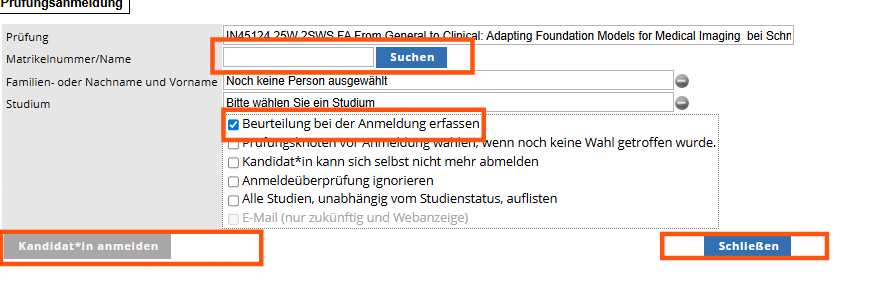
- Search by Matrikelnummer or Name.
- Check the option:
“Beurteilung bei der Anmeldung erfassen”
→ Allows grade + registration at the same time. - Click Kandidat*in anmelden.
- Finish by clicking Schließen.
📸 Screenshot: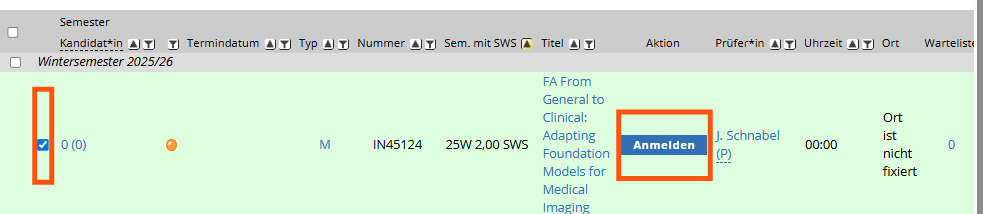
Step 3 — Enter Grades
Navigate to:
Prüfungen Beurteilen
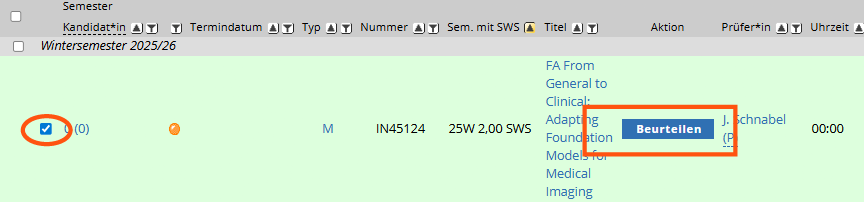
- Click Beurteilen on your course.
- You will see an alphabetical list of students.
- Enter grades for each student.
- Mandatory: Add a Prüfungsdatum for each entry.
- Save via Speichern.
📸 Screenshot: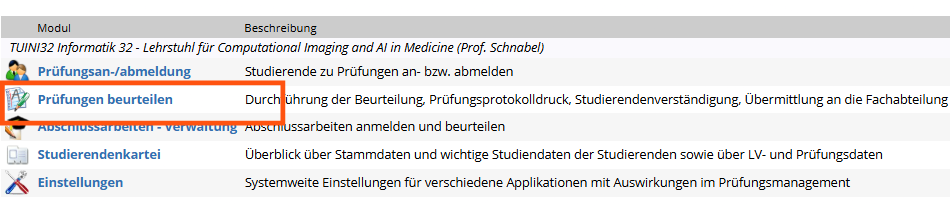
4. Sammelprotokoll & Finalization
Step 4 — Generate the Sammelprotokoll
Navigate to:
Prüfungs-/Beurteilungsliste
- Select your course.
- Choose Drucken für Markierte → Sammelprotokoll drucken.
- Save the generated PDF.
- The PDF must be signed (electronic or original) by:
- The Head of Department (Julia)
- Then archived
📸 Screenshot:[Add screenshot: Sammelprotokoll drucken]
Step 5 — Set Course as Valid (Gültig setzen)
Once the Sammelprotokoll is printed:
- Ensure the course is still selected.
- Click Aktionen für Markierte → Gültig setzen.
- The Head of Department will finalize the approval and verify documents.
📸 Screenshot: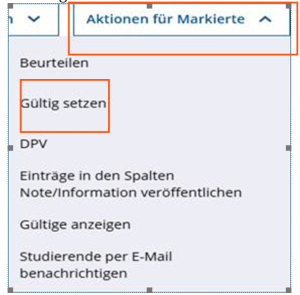
5. Final Verification
To confirm everything is complete:
- Return to Prüfungsmanagement.
- Enter your PIN again.
- Go to Prüfungsan-/abmelden.
- The course should no longer appear — indicating finalization is complete.
📸 Screenshot:
Support & Troubleshooting
If you run into issues while working with exam management in TUMonline — e.g. unexpected system errors or duplicating a course— you can get help here:
CIT Exam administration (functional address):
📧 exams-cs.asa@xcit.de
You can contact this address for any questions related to exams.- TUM IT Support:
📧 it-support@tum.de
For technical issues, access problems, or PIN resets.
If you’re unsure whom to contact, feel free to write to it-support@tum.de first - they will forward your request to the right place if needed.