



IMAP und Thunderbird


Barrier-free

This page contains alternative texts for images/graphics.

What do I need to consider when using Thunderbird?

Outlook and Outlook on the Web use different default folders than Thunderbird for "Deleted Items", "Sent Items", "Drafts" and "Junk Email". To make sure that Thunderbird also uses these folders, it is recommended to make appropriate configurations. To do this, subscribe to the default Exchange folders as described in Why does Thunderbird not show all the folders that are present in Outlook/Outlook on the Web?

Then go to "Tools → Account Settings" and click "Copies & Folders" under your Exchange mailbox. Verify that "Place a copy is:" is checked. Then select "Other:" and choose the "Sent Items" folder under your Exchange mailbox. Do the same for the "Drafts" folder.
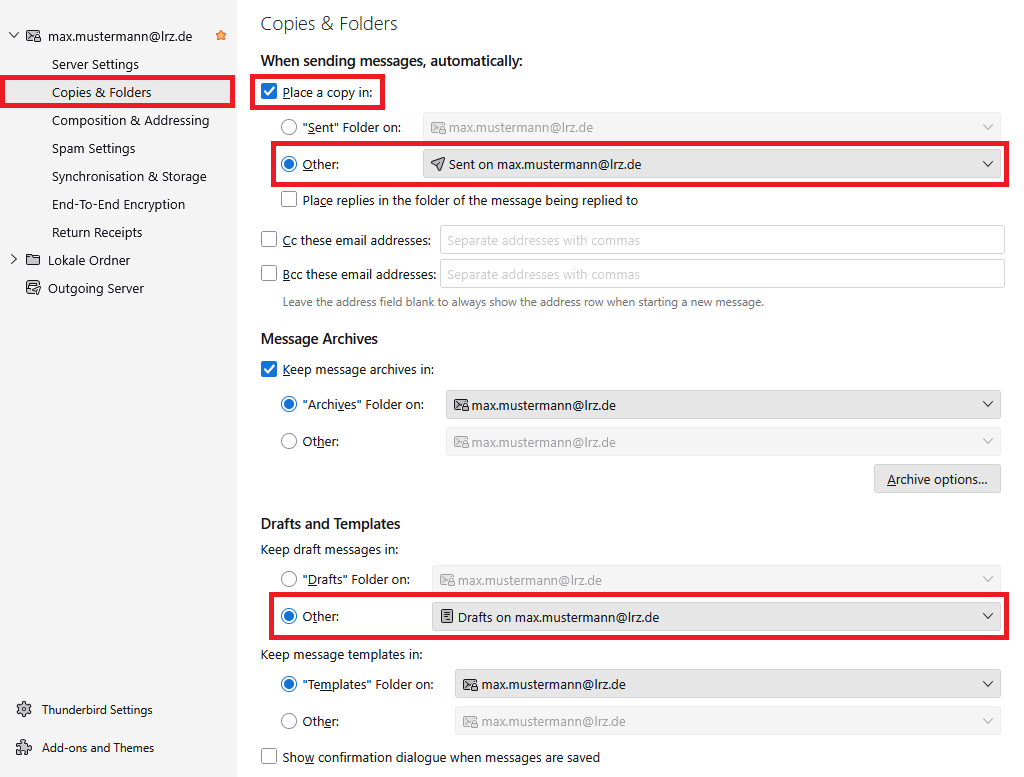
Window Account Settings. In the left column at max.mustermann At lrz.de, Server Settings, selected Copies and Folders, Composing and Addressing, Spam Settings, Synchronization and Storage, End-To-End Encryption, Return Receipts. Below Lokale Ordner and Outgoing Server. In the main field, Copies and Folders. When sending messages automatically. Below box with hook, Place a copy in. Below radio button  Sent Folder on, grayed-out selection field, selected radio button Other, selection field, Send on max.mustermann At lrz.de, Box Place replies in the folder of the message being replied to. Box CC these email addresses, blank input field, Box BCC these email addresses, blank input field. Leave the address field blank to always show the address row when starting a new message. Message Archive, Box with hook, Keep messages archive in, selected radio button, Archives Folder on, selection field, max.mustermann At lrz.de, radio button, Other, grayed-out selection field. Right below, button, Archive options. Drafts and Templates. Keep draft messages in. Radio button, Drafts Folder on, grayed-out selection field, Selected selected radio button Other, selection field Drafts on max.mustermann At lrz.de. Keep message templates in. Selected radio button, Templates Folder on, selection field max.mustermann At lrz.de, radio button Other, grayed-out selection field. Box Show confirmation dialog when messages are saved.

You can change the default folder "Deleted" under the "Server Settings". To do this, select the Deleted Items folder under "Move to this folder:"
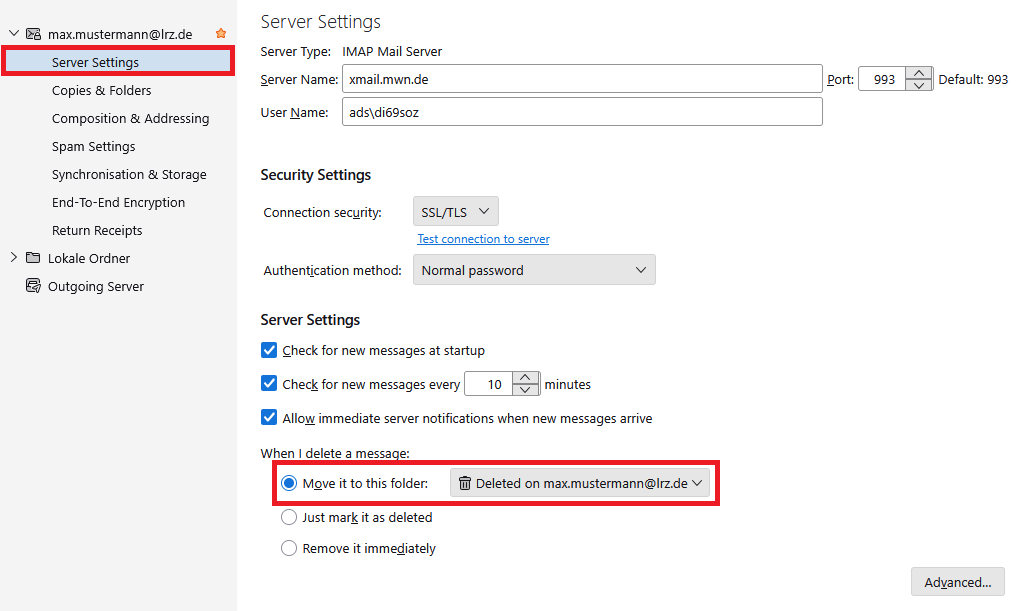
Window Account Settings. In the left column under max.mustermann At lrz.de, selected Server Settings, Copies and Folders, Composing and Addressing, Spam Settings, Synchronization and Storage, End-To-End Encryption, Return Receipts. Below Lokale Ordner and Outgoing Server. In the main field, Server Settings. Server type, IMAP Mail Server, Server Name, Input field xmail.mwn.de, Port Input Field 993, Default 993. User Name Input field ads backslash di69soz. Security Settings. Connection security, selection field SSL slash TLS, clickable Test connection to server, authentication method, Selection field Normal password. Server Settings. Box with hook, Check for new messages at startup, Box with hook, Check for new messages every, Input field 10, minutes, Box with hook, Allow immediate server notifications when new messages arrive. When I delete a message. Marks selected radio button, Move it to this folder, Select field Deleted on max.mustermann AT lrz.de, Radio button, Just mark it as deleted, Radio button, Remove it immediately. Underneath Right, Button Advanced.

You can set the default folder for "Junk Email" under "Spam Settings". Verify that the checkbox is set for “Move new spam messages to:”. Then click on “Other:” selection and select the “Spam” folder from your Exchange mailbox.
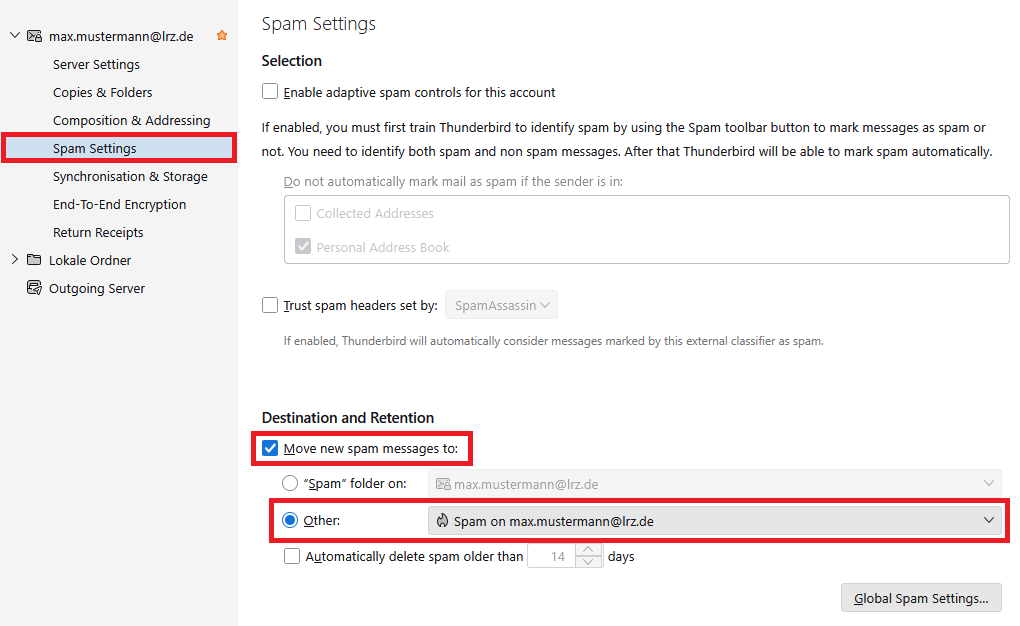
Window Account Settings. In the left column under max.mustermann At lrz.de, Server Settings, Copies and Folders, Composing and Addressing, selected Spam Settings, Synchronization and Storage, End-To-End Encryption, Return Receipts. Below Lokale Ordner and Outgoing Server. In the main field, Spam Settings. Selection. Box,  enable adaptive spam controls for this account. If enabled, you must first train Thunderbird to identify spam by using the Spam toolbar button to mark messages as spam or not. You need to identify both spam and non spam messages. After that Thunderbird will be able to mark spam automatically. Grayed out, Do not automatically mark mail as spam, if the sender is in, grayed out box, Collected Addresses, grayed out box with hook, Personal Address Book. Box, trust spam headers set by, grayed-out selection box, SpamAssassin. Grayed out, If enabled, Thunderbird will automatically consider messages marked by this external classifier as spam. Destination an Retention. Marked, Box with hook, Move new spam messages to, Radio button Spam folder on, grayed-out selection field, max.mustermann At lrz.de, selected radio button, Other, selection field, Spam on max.mustermann At lrz.de, Box automatically delete spam older than, grayed out input field 14, days. Below Right, Button, Global Spam Settings.

You may need to restart Thunderbird to make your new settings take effect.


How can I manage my calendar and tasks under Thunderbird?

Unfortunately, this does not really work. There are always solutions that work more or less well. But all of them have in common that they often don't work properly or don't work at all when there are version changes of Thunderbird or the addons. We can therefore not recommend a calendar management using Thunderbird.


Why does Thunderbird not show all folders that are available in Outlook/Outlook on the Web?

With most IMAP clients, folders must be explicitly subscribed to before they are available in the folder overview. To subscribe to folders under Thunderbird, right-click on your mailbox and select the "Subscribe" option. In this folder list you will see all the folders that are available on the Exchange server. Check the desired folder to subscribe to it. Confirm this window with OK. The selected folder should now be visible in your folder list.

Please note:

  • These subscriptions apply to all IMAP users of a shared mailbox.
  • New folders created under Outlook or Outlook on the Web are not automatically subscribed.


Can I access the address book with Thunderbird?

Thunderbird can access the Active Directory (the directory service) of Exchange. However, accessing the Active Directory only works in MWN or if there is a VPN connection to MWN.

To do this, go in Thunderbird's settings to "Compose" and check under "Addressing" the LDAP directory server.
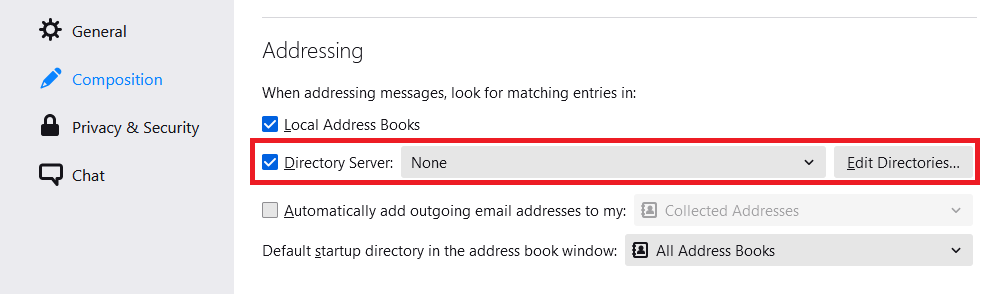
Window Preferences. Topic bar, selected is the second topic, Composition. Main field. Hightlighting Addressing. When addressing messages, look for matching entries in, colon. Box with check mark, Local Address Books. Selection, Box with check mark, Directory Server, colon. Selection field, None, button, Edit Directories... . Below this area, box without tick, Automatically add outgoing email addresses to, colon, grayed out selection Collected addresses. Default startup directory in the address book window, colon, selection field, All Address Books.

After that click there on "Edit Directories → Add".

Base DN:ou=users,ou=TenantID,ou=iam,dc=ads,dc=mwn,dc=de
Bind DN:cn=Kennung,ou=users,ou=TenantID,ou=iam,dc=ads,dc=mwn,dc=de

Refer to the following table for the "TenantID":

Institution

TenantID

Akademie der Bildenden Künste

ad

Hochschule München

hm

Hochschule Weihenstephan-Triesdorf

hw

LMU München

lm

TU München

tu

As a TU member with the account di69soz, you would have to enter Bind-DN: cn=di69soz,ou=users,ou=tu,ou=iam,dc=ads,dc=mwn,dc=de

Also select port 636 and secure connection (SSL). The server is ads.mwn.de. The name is in principle freely selectable (e.g. TUM).
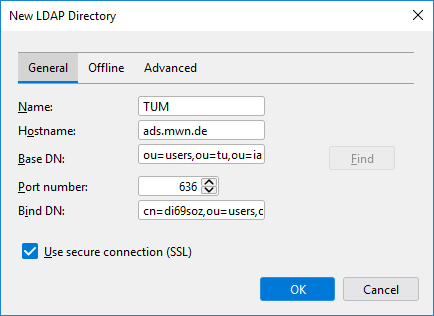
Windwo New LDAP Directory. 3 tabs, selected is the first one, General. Name, input field TUM. Server address, input field ads.mwn.de . Base DN, input field ou equal sign users,ou equal sign tu,ou equal sign iam,dc equal sign ads,dc equal sign mwn,dc equal sign de, Search button. Port number, input box 636. Bind-DN, input box cn equals sign di69soz,ou equals sign users,... Box with tick, Use encrypted connection (SSL). At the very bottom right, 2 buttons OK, Cancel.

Now you have to select the directory server you just configured. This way you will get the names and mail addresses of all users in your institution.

In order to get a correct autocomplete, you also need to configure the following:

To do this, go to Settings -> General and scroll all the way down. Now open the Config Editor. 

You must now add a new variable with the name "ldap_2.servers.NAME.attrmap.DisplayName", where for NAME you must insert the name chosen above (so in the example TUM).

To do this, enter the name in the search box. Now select String and click on the plus sign. 
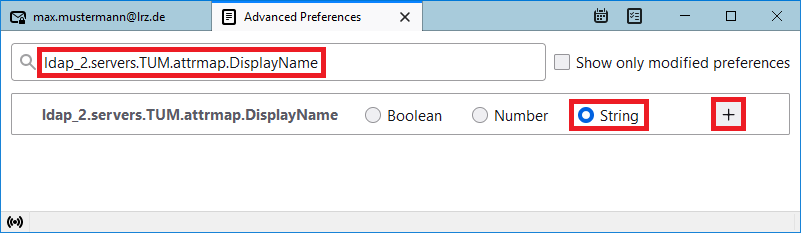
Window Advaned Preferences. Search Field, ldap_2.servers.TUM.attrmap.DisplayName. Box without check mark, Show only modified preferences. Below ldap_2.servers.NAME.attrmap.DisplayName, radio button Boolean, radio button Number, select radio button String. Marked plus Sign.

Now enter the value displayName and confirm it with the check mark. 
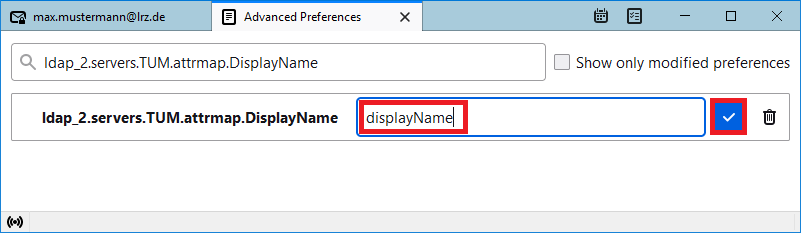
Window Advaned Preferences. Search Field, ldap_2.servers.TUM.attrmap.DisplayName. Box without check mark, Show only modified preferences. Below ldap_2.servers.NAME.attrmap.DisplayName, input field, displayName, marked check mark, icon Recycle Bin.