Content:
Login to the ED portal at https://portal.ed.tum.de
- Open Koinon of ED (ED portal) in your browse at https://portal.ed.tum.de
- Log in with your TUM credentials. With your TUM credentials you identify as yourself and no signatures, neither on paper nor digitally, are required.
- To register theses, always use the school portal that is specific to the study program of the student. E.g. for a student of Mechanical Engineering you use the ED portal, for a student of Mathematics you use the CIT portal. A list of all study programs offered at ED is available at For Students and Prospective Students.
- In case of technical problems with the ED portal, please contact support-koinon.ed@ed.tum.de
Who uses Theses in the ED portal?
The process is based on the specifications in the respective Program-Specific Academic and Examination Regulations (FPSOs) and the TUM General Examination and Study Regulations (APSO). The process is fully digitalized. Previously required original signatures on forms/digital signatures on PDFs are replaced by the personal log-in with your TUM ID.
Process Overview
The thesis process is for all types of assignments that are managed in TUMonline under Theses - Administration. This includes the following examination types in TUMonline:
- MAGARBZ - Masters' Thesis / MAGARBN - Master's Thesis
- BAKARBZ - Bachelor's Thesis / BAKARBN - Bachelor' Thesis
- PRUEFARB - Semesterarbeit (only in the degree programs Environmental Engineering)
The scope of the final thesis/study project must be designed as specified in the respective Program-Specific Academic and Examination Regulations (FPSO). “Preliminary work” without registration is not permitted!
Registration of a Thesis
Once chair and student have agreed on a topic for the thesis, the chair submits the registrant for the thesis in the ED portal. The student has to confirm the application. The request is then checked and approved by the School Office.
Application for registration of a thesis
Registrant: Log into Koinon and check the organization unit you are currently logged in for (relevant for people belonging to more than one organization unit). If applicable, choose the correct organization unit (see FAQs - ED portal).
Registrant: In the lefthand menu, navigate to Theses → Theses
Registrant: Click on + report new thesis

Registrar: Enter the student ID in the field Matriculation and click Search student(s).
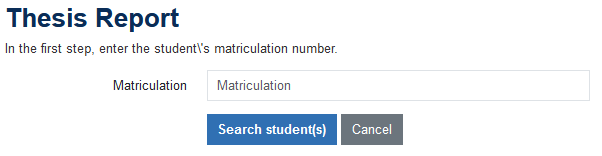
If a student is enrolled in more than one degree program, please select the appropriate one under Type in the next step.
Registrant: complete the following information:
- Preliminary title (in German and English, if applicable)
- Planned language of the written thesis, if applicable
- Supervisor: If the registrant is not the supervisor, please indicate the supervisor here by entering the TUM e-mail address.
- Second supervisor: only add if a second person is supervising the thesis. Enter the TUM e-mail address.
- First examiner: Select via drop-down menu, Second examiner if required in the form. A second examiner is optional for some degree programs.
- Start date (registration is possible at the earliest two weeks before the start date)
- Closure remark, if provided in the form
- Cooperation partner: If the thesis is to be completed externally (company or external university), please select “Yes” here and add information about the cooperation partner. Important: No emails will be sent to external email addresses!
Click Report to send the application.
Please note: By submitting the application for registration, the registrant confirms that the examiner has been informed about the registration of the thesis and agrees to the registration. The registrant will be informed of the registration by email.

Upon submitting the registration, the supervisors and examiners of the registered work will receive an e-mail with the data provided. If the persons concerned do not agree with the registration, please contact the School Office. A list of contacts for the individual degree programs can be found under Contacts for Theses at ED
Confirmation of the Registration by the Student
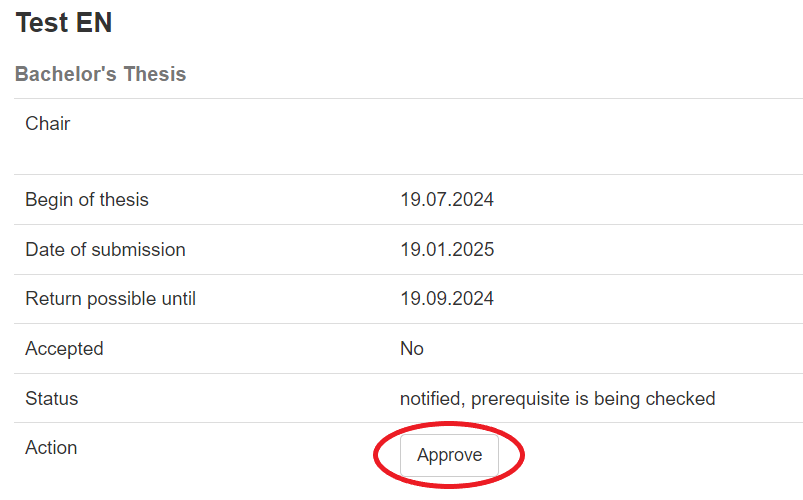
Student: The student will receive an email asking them to confirm the registration of their thesis. If the student agrees to the registration, please click on the link Please confirm here in the e-mail. (If they do NOT agree, students should consult the chair). The student will be forwarded directly to Koinon to confirm the thesis.

Student: click on Approve →
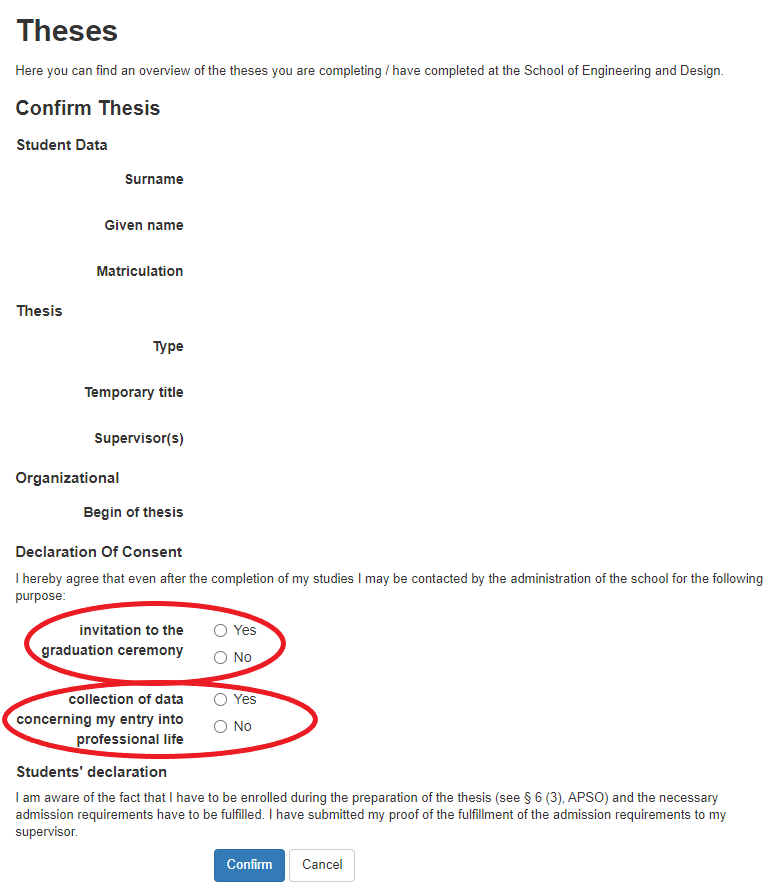
Student: Complete the information on graduation ceremony and evaluation on entry into professional life and click on Confirm. →
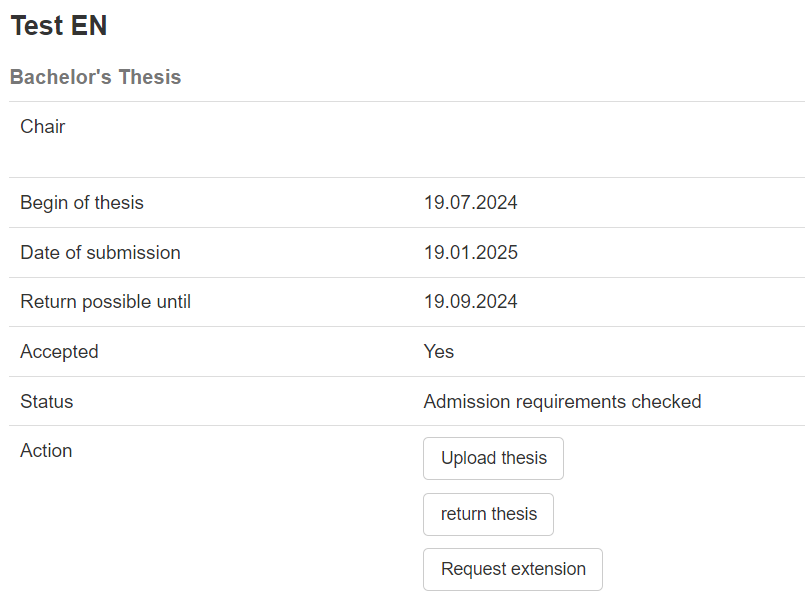
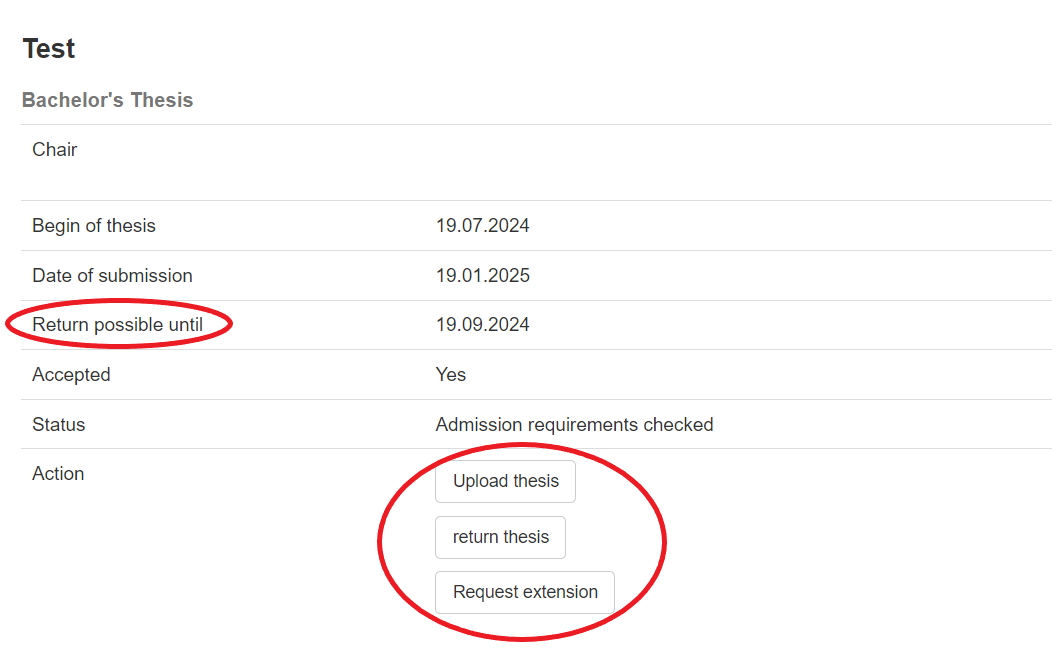
The student now sees an overview of their confirmed thesis. The dates for the start of the thesis and the submission deadline are given, as well as the last possible date by which the thesis topic can be returned without counting as a failed attempt (see the section “Returning the topic”).
Approval of the Registration by the School Office
School Office: Once the student has confirmed the registration the School Office will receive an email notifying them that the registration has been received. The email contains a link that leads directly to this registration in the ED portal.
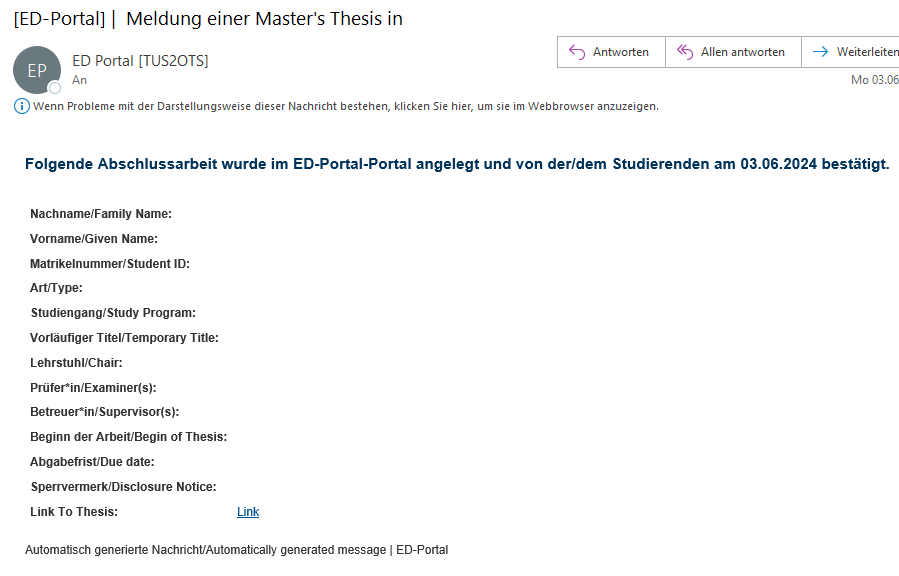
Alternative access to registered theses for the School Office:
School Office: Log in to the ED portal (https://portal.ed.tum.de/en/, login with TUM ID), in the menu on the left under Theses → Management → Overview.
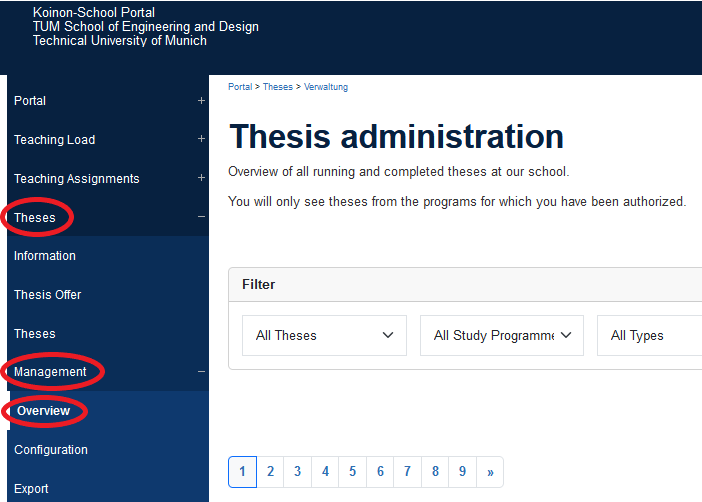
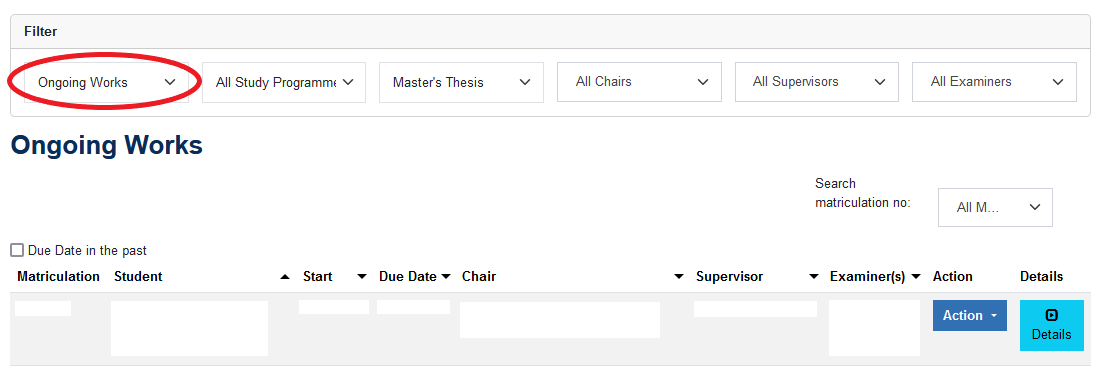
School Office: In the upper section you can filter for theses according to their status, study program, type of thesis (Bachelor or Master thesis) or by supervising chair, supervisor or examiner. On the right one can also search for students by their matriculation number.
To check registrations choose the status filter Notified, admission requirements is being checked.
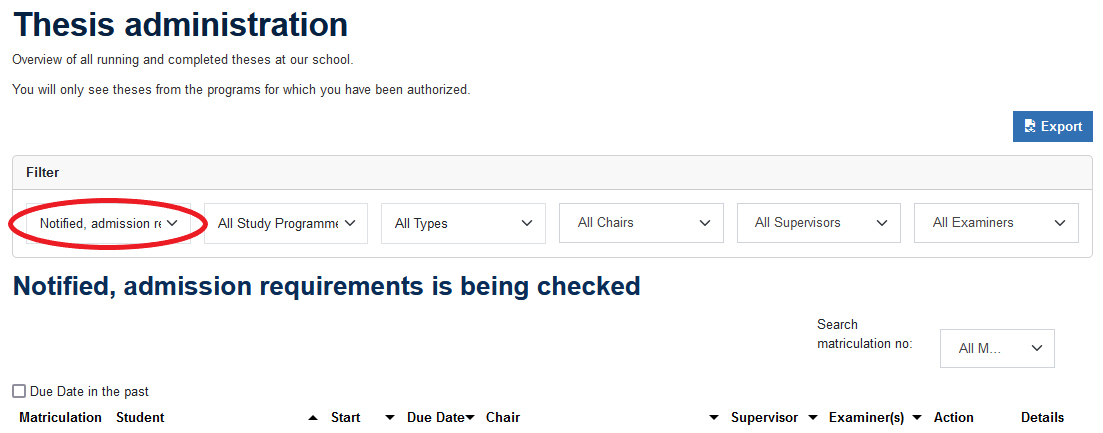
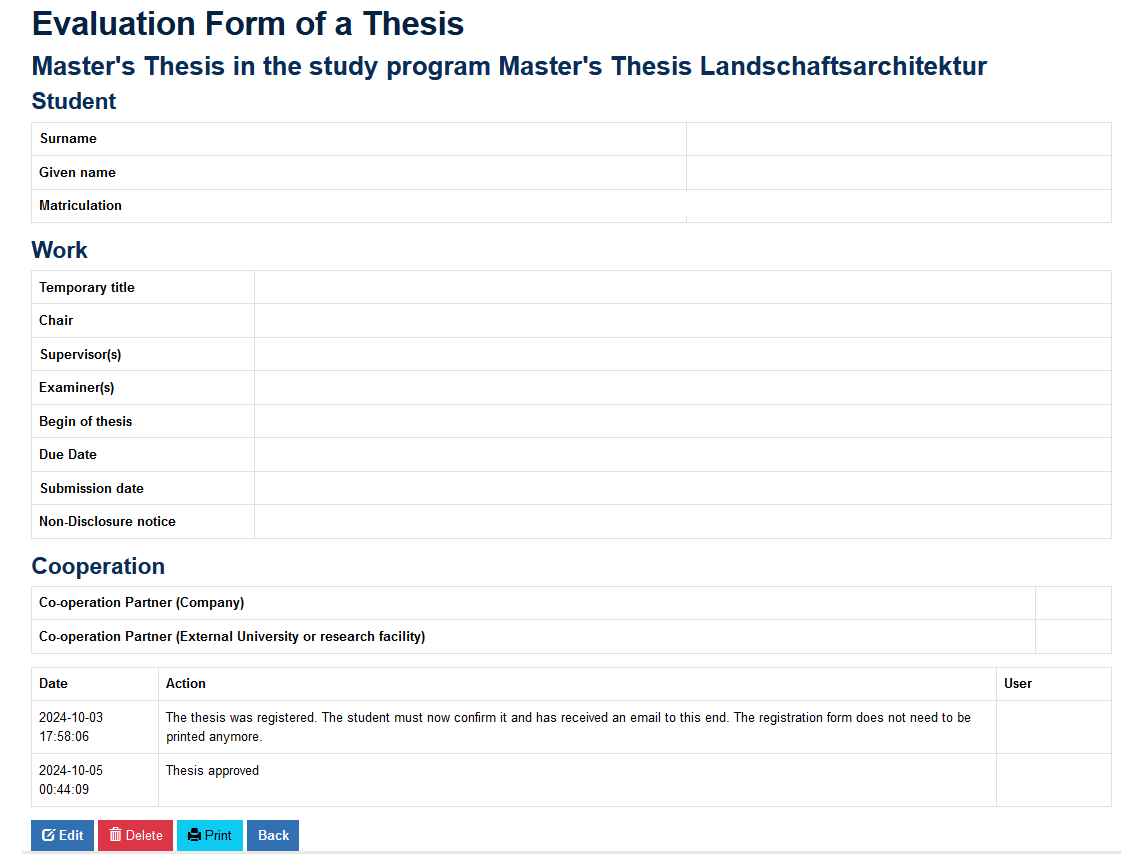
School Office: Click on Details in the thesis to view the data (title, examiner, start date etc.) (in the portal this overview is called Evaluation Form).
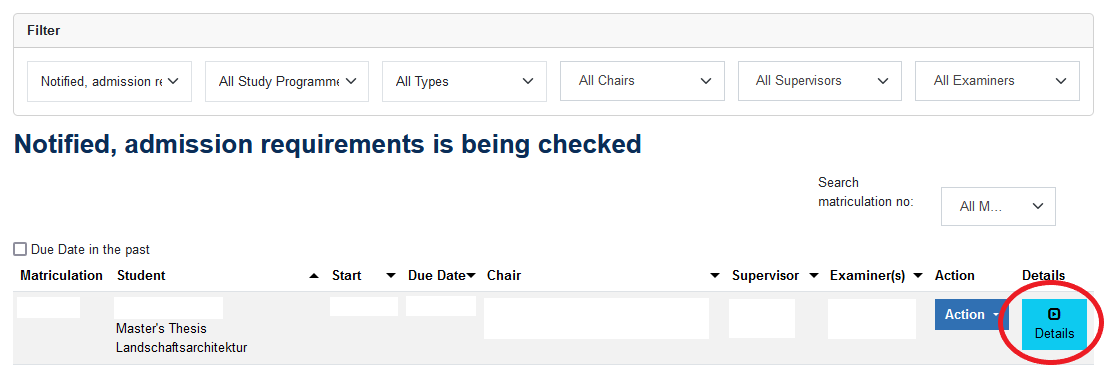
School Office: Check the requirements and data in the Evaluation Form and the student's data in TUMonline (e.g. is the chosen examiner eligible to be examiner in the study program? Are required exams and credits passed?)
Approval
School Office: If the data is correct and requirements are met, go to Back and choose Approved under Action.

The thesis' status is changed to the status Ongoing Works.
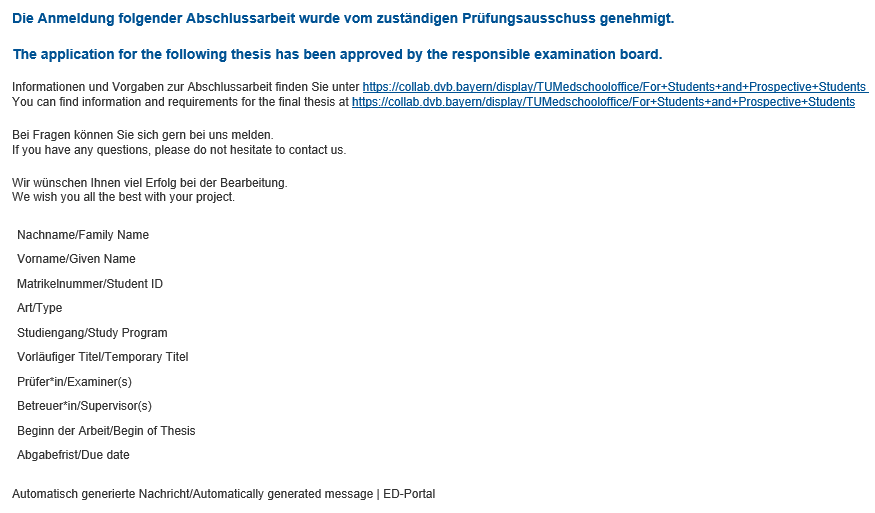
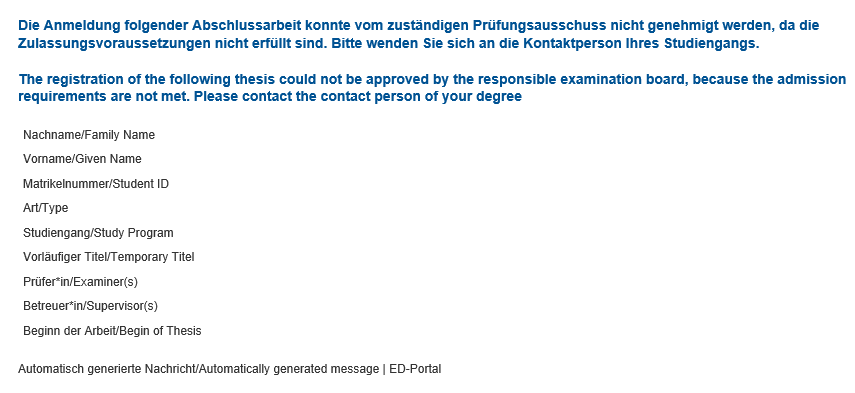
The student will receive an email with supervisor and examiner in cc about the binding registration of the thesis.
Rejection
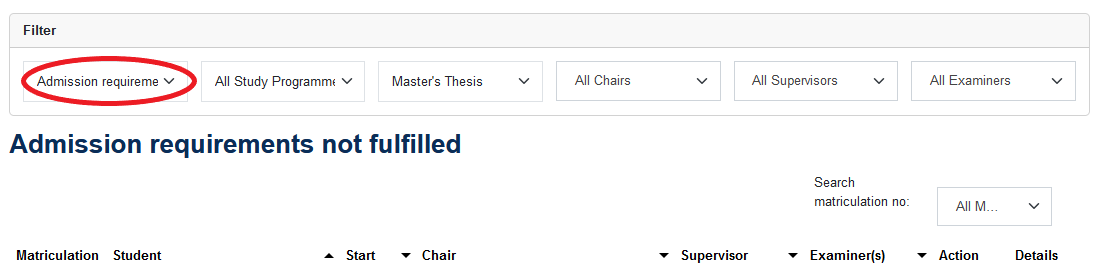
School Office: if the data is incorrect or requirements are not met, go to Back and choose Not Approved under Action.

School Office: Enter the reason for the denial into the text field. This text will be added into the email that the student receives.
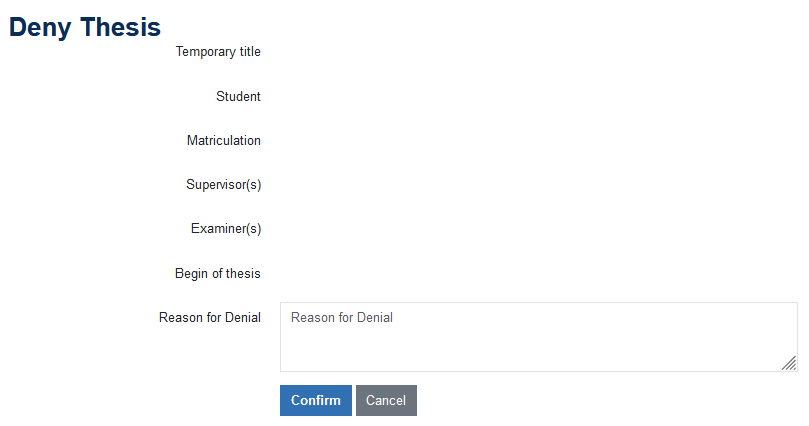
The thesis' status is changed to the status Admission Requirements not fulfilled.
Change of Data after the Registration
In case changes need to be made to supervisors and examiners after a thesis has been registered (e.g. due to illness, leaving of TUM, etc.), this data can still be changed at a later date. These changes can only be made by the School Office and only if the thesis has already been confirmed by the student.
School Office: In the Evaluation Form of the thesis, click on Edit.

Supervisors can be changed by entering a new email address in the field Edit Supervisor.
Examiners can be changed in the drop down menu. If two examiners have been registered, it is not possible to remove one examiner. In this case, the thesis registration would have to be deleted and registered anew.
To save edited data, click Submit.
Theses of Exchange Students
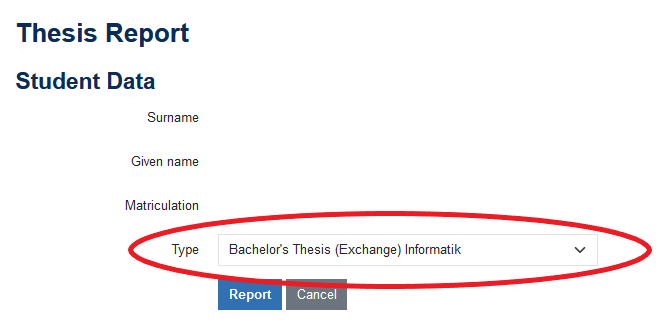
The process for registering theses of exchange students (incoming students) is basically the same as for regular students. Exchange students are enrolled in special degree programmes and are automatically recognized as exchange students by the ED portal. As the exchange degree programs are not separated into Bachelor's and Master's degree programs, you need to indicate whether you want to register a Bachelor's or Master's thesis for the students when registering. To do this, select the desired thesis under Type.
During the project work
During the regular project work period of the thesis, usually no actions of student, chair or School Office are required.
Thre might be program specific regulations that have to be met.
In case that during the project time of a thesis, the students wishes to return the topic of the thesis, has to apply for an extension due to sickness or other valid reasons or the examiners of the thesis need to be changed, you will find more information on that below.
Returning the Thesis Topic
According to APSO §18, sec. 7, the topic of a thesis can once be returned within the first third of the project time of the thesis without counting as a failed attempt.
Student: In the overview of your thesis, the last possible return date is listed. After this date, returning the topic of your thesis counts as a failed attempt for the final thesis.
To return the thesis topic, click the button return thesis.
Student: You will be redirected to a form where you have to enter the reason for your wish to return the thesis topic an confirm that you really wish to return the topic.
INSERT SCREENSHOT
Chair and School Office will receive an email that a returning of the thesis topic has been requested.
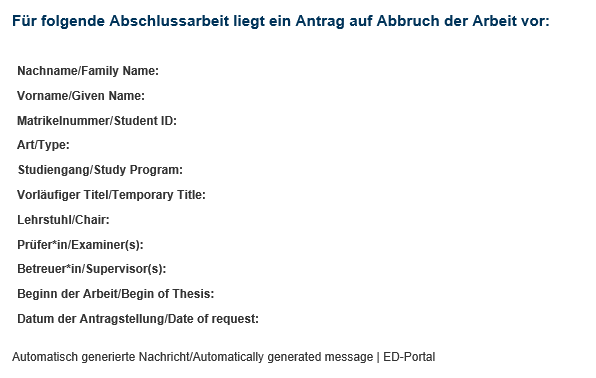
School Office: Look for the respective thesis in the ED portal and click Action. In the drop down menu choose return thesis.

School Office: Check the reason for the student´s wish to return the topic and select Yes or No in the field approve_return: Confirm by clicking Submit.
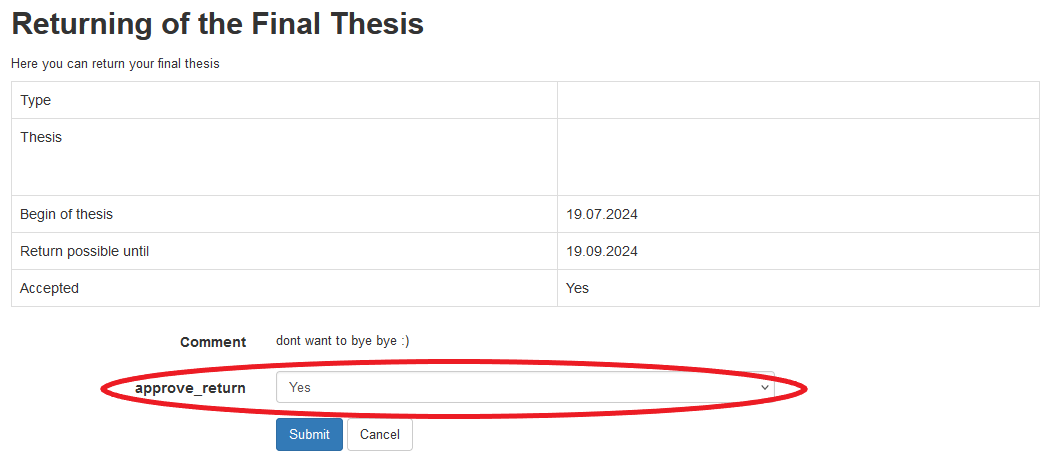
Student and chair will be informed about the decision by email.
School Office: the thesis will get the new status Returned theses.
Request for Suspension or Extension
In the case of sickness or other valid reasons that the student is not responsible for, the student can request an extention of the thesis (ref. § 18 para. 6 sent. 2 and 3 APSO)
An extension always has to be requested by the student immediately.
Student: In the overview of your thesis below the details there is a button Request extension.
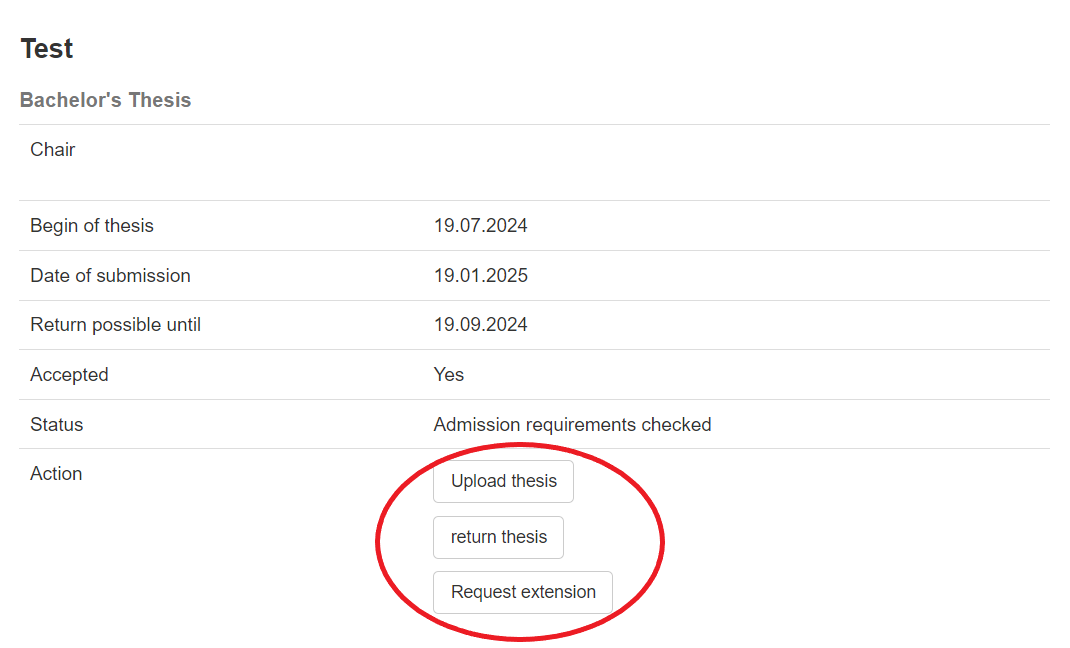
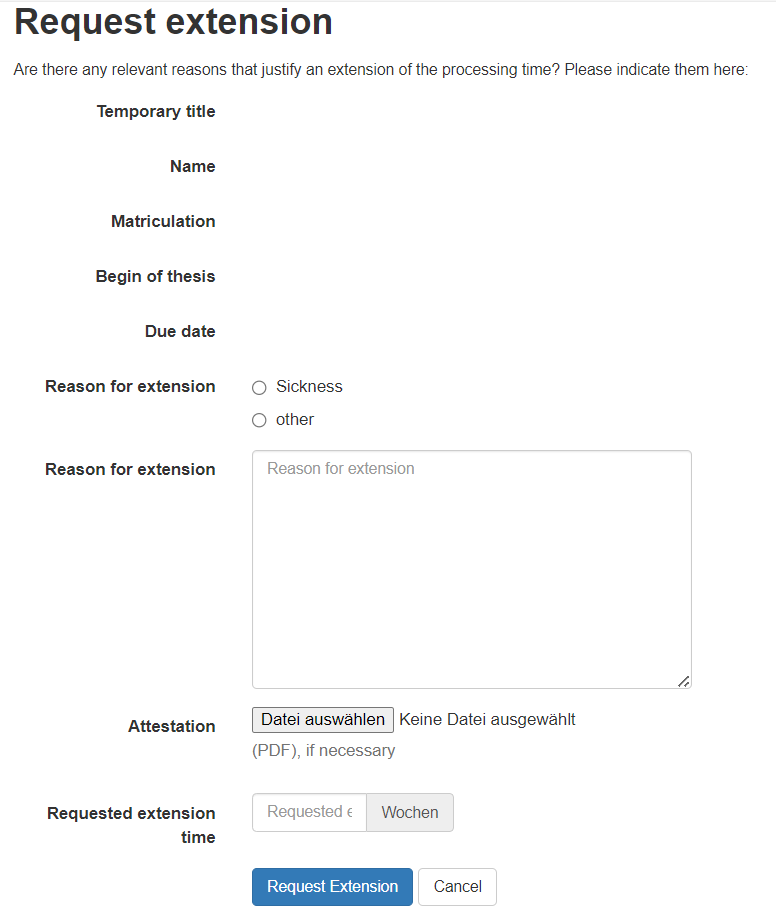
Student: In the Request extension screen, please indicate whether you are requesting a suspension for health reasons or an extension for other reasons for which you are not responsible.
If you are requesting a suspension due to sickness, please provide a brief explanation of how the sickness affects your ability to complete your thesis in due time and attach a medical certificate The certificate must contain information on the duration of the sickness. A suspension due to sickness is always granted on the exact day specified in the certificate. For technical reasons, however, you must enter a “requested extension time” in the form and this can only be entered in whole weeks. When the application is approved, the exact duration of the sick leave according to the medical certificate will be added.
In the case of an extension for other reasons (Other), please provide a detailed explanation of why you were prevented from working on your thesis. A certificate is not necessary.
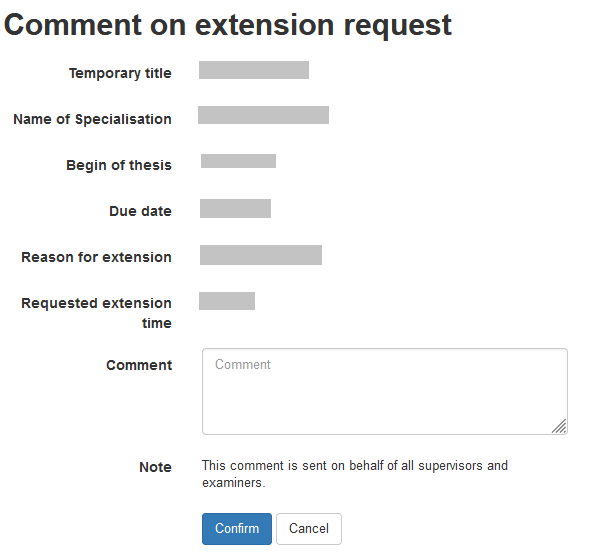
Chair: Only in the case of an extension request due to other valid reasons the Chair will be informed about the request by email and asked to comment on the request. To do so, click on the Action button for the specific thesis in your overview page and choose Comment on extension request in the drop down menu.

Chair: Please enter in the Comment field to which extend you can confirm the reasoning of the student and whether you support the requested extionsion time or find a shorter or longer extension more suitable.
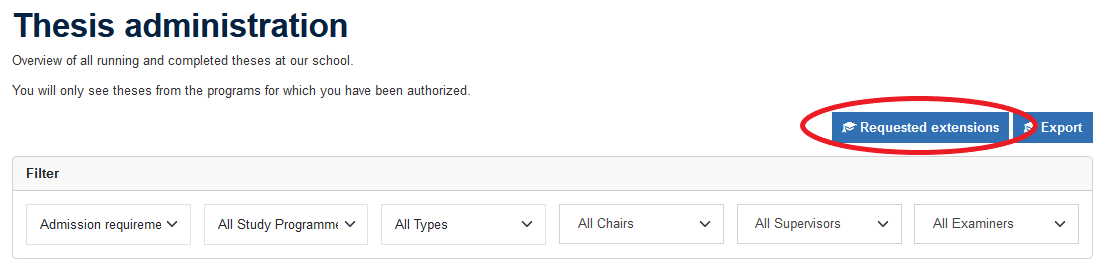
School Office: In the administration overview on the top righthand side above the filters you find the button Requested extensions. Here you will find a list of all open requests.
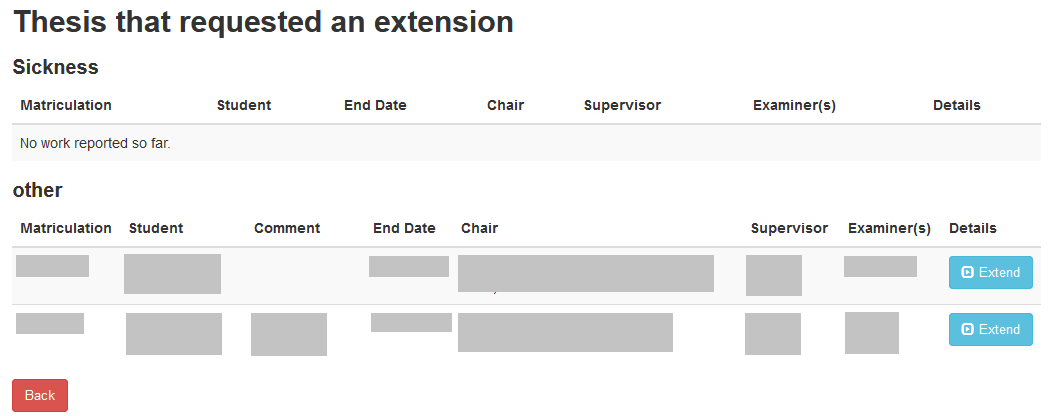
School Office: The list of open requests is divided into requests due to sickness and due to other reasons. By clicking the button Extend you are forwarded to the details of the requests. No extension will be approved with this button.
School Office: For requests due to sickness you see the reason for the request in the details and by clicking on the underlined word Attest you can open the medical certificate and archive it in the student file.
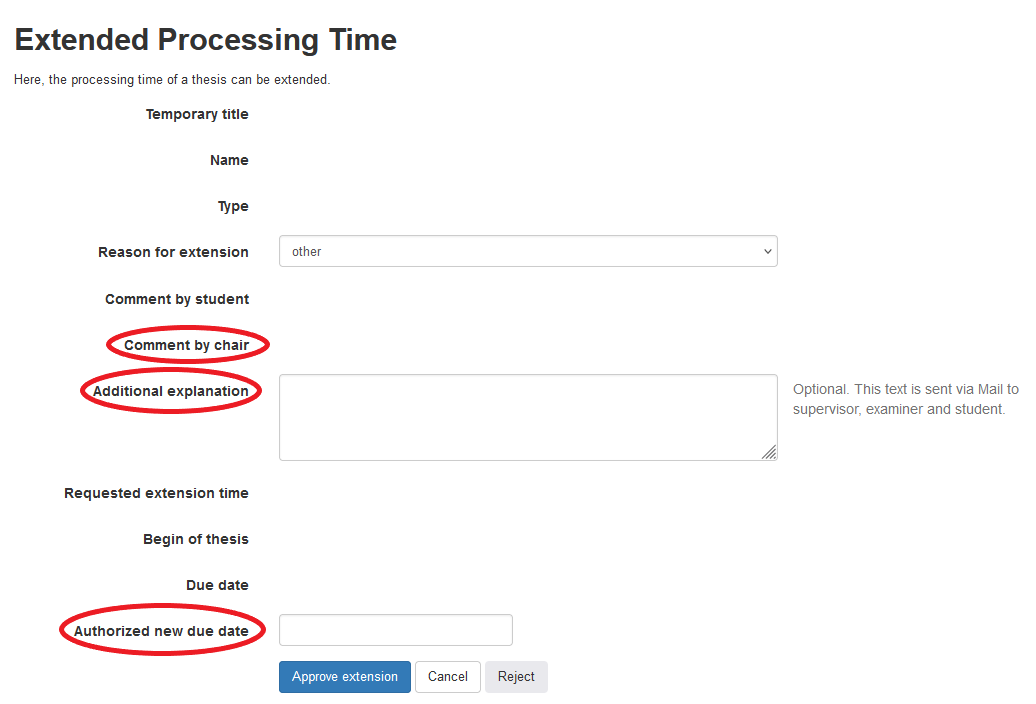
Enter the new due date in the field Authorized new due date. As only whole weeks can be requested, please extend for the actual duration of sickness as provided in the medical certificate.
The field Additional Explanation can be used to add an optional text that will be included in the email that is send to student and chair.
Finalize the approval or rejection by clicking Approve extension or Reject.
Please note: if a reason for rejection is to be sent to the students, it must be entered directly in the Additional Explanation field on this page. After that, it will no longer be possible to enter anything.

School Office: Requests due to other valid reasons also include the comment by the chair in the details.
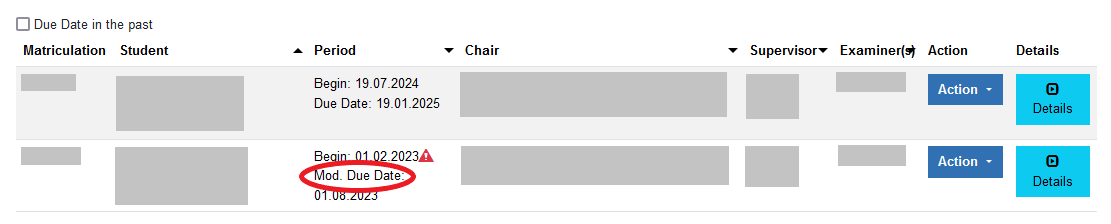
Chair and School Office: After a suspension or extension has been approved, the new due date is marked as Mod. Due Date in the thesis overview.
Submission of the Thesis
The written report of the thesis will be submitted digitally in the ED portal.
Deadline Monitoring
In the ED portal, the submission deadline for each thesis is indicated in the Period column. If the submission deadline has been exceeded, this is indicated by the symbol (triangle with exclamation mark) next to the deadline in the overview list. The Chair is also notified of any deadline overruns in this way. For an easier overview, the Period column can be sorted chronologically.
The School Office also has the option to filter all ongoing theses for theses with Due Date in the past. To do so activate the check box on the lefthand side above the overview list.

Upload of the Written Thesis by the Student
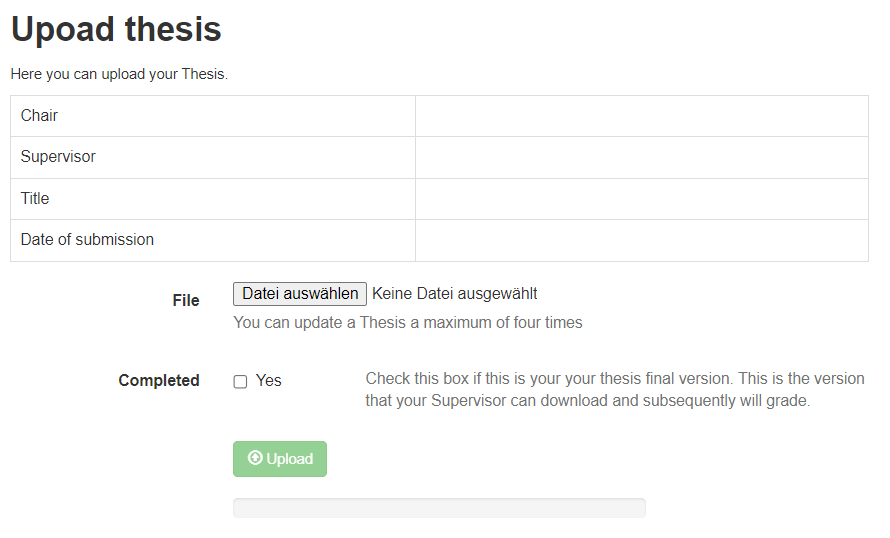
Student: In the overview of the thesis data, click on Upload thesis in the lower part.

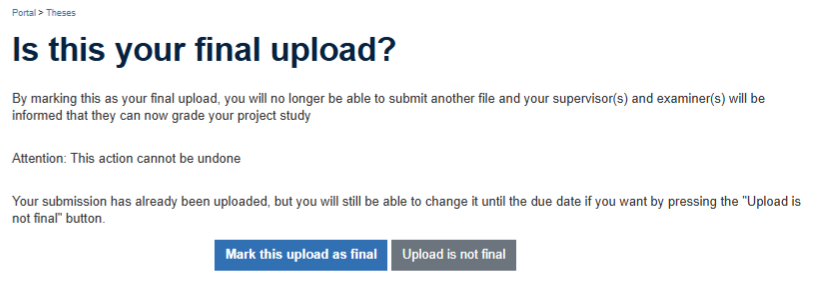
Student: Upload the thesis at Datei auswählen and in a second step confirm the final submission of the thesis . After that, no more changes can be made to the document.
Download of the Written Thesis by the Chair
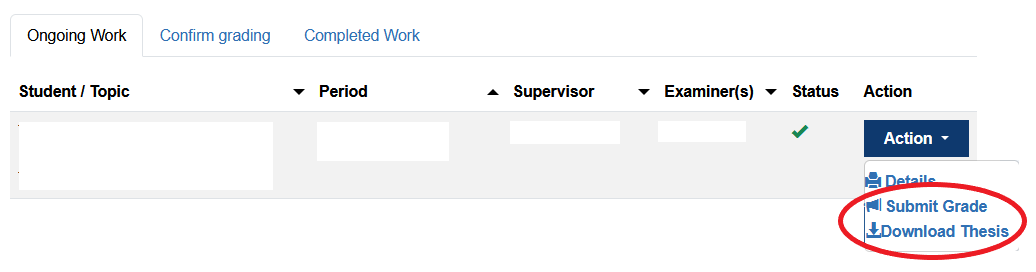
Chair: Once the written thesis has been finally submitted in the ED portal by the student, the Chair will be notified by email. In overview of all theses, click on the Action button and in the drop down menu choose Download Thesis.
Depending on the browser, the pdf file opens in a new window and can be saved or it is directly saved in your downloads.
Assessment
The assessment of the written thesis and if applicable also of the presentation is done in the ED portal.
Grade Submission
Examiner: Assessment of the thesis.
Chair: To submit the grade, click on Action and choose Submit Grade in the drop down menu.
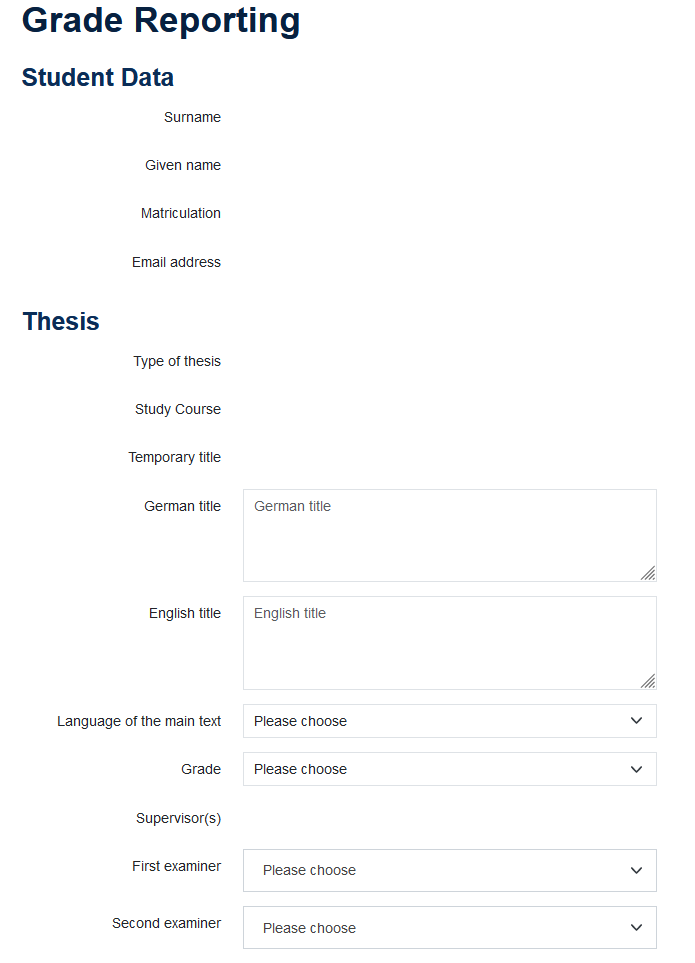
Chair: Review and clomplete all data of the grading form.
In the section Thesis please complete:
German title: Enter final title in German
Englisch title: Enter final title in English. Note: The Use of English in Thesis Titles at TUM
Language of the main text: Select in language, in which the thesis is written.
Grade: Select the grade
First/Second examiner: Select the examiners from the drop down menu.
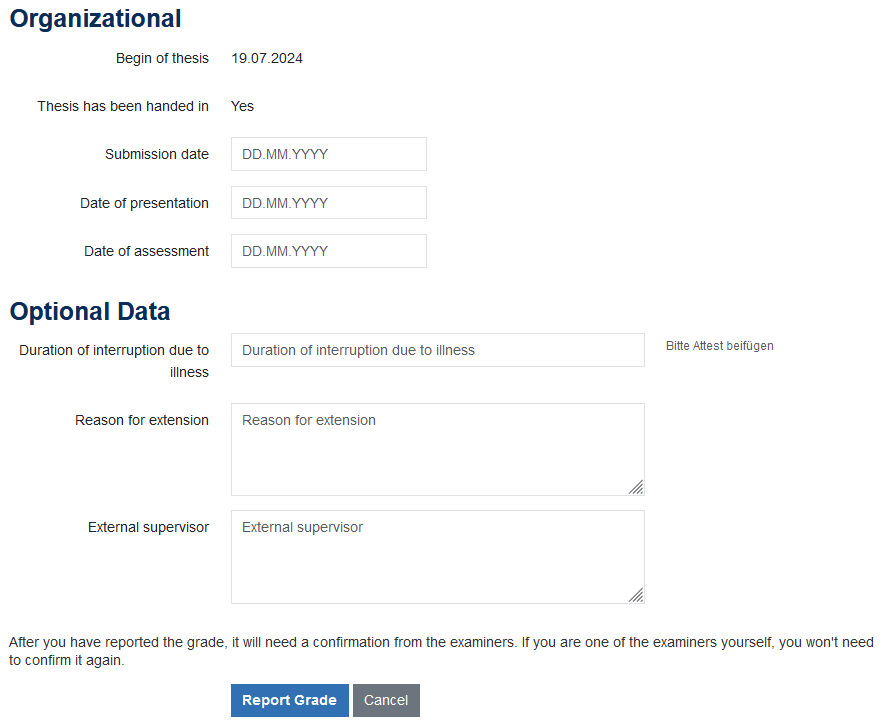
In the section Organizational please complete:
Thesis has been handed in: Yes/No. In case the thesis has been submitted in the ED portal, Yes will automatically be selected.
Submission date: Date on which the student submitted the thesis (will be automized in an upcoming update)
Date of presentation: Date on which the student gave the talk about the thesis topic and results (relevant for the graduation date on the graduation certificate)
Date of assessment: Date on which the grade is submitted in the ED portal (will be automized in an upcoming update)
The section Optional Data on potential extensions will be removed in an upcoming update.
Submit the data by clicking Report Grade.
Confirmation of the Grade
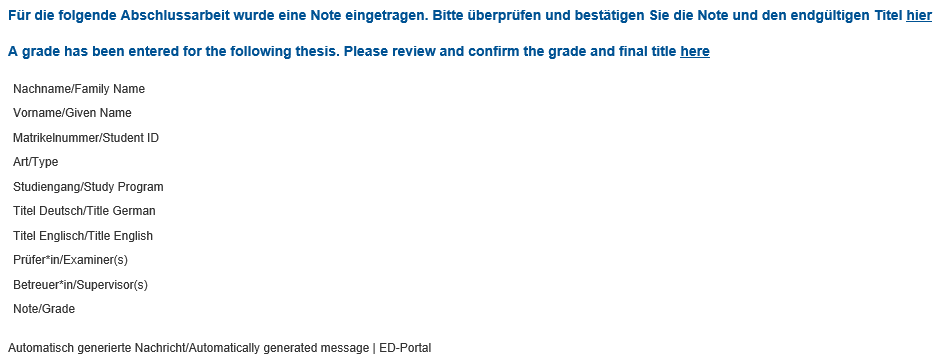
Examiner: Once a grade has been submitted for a thesis, the examiner will receive an email asking to confirm the grade and final title in the ED portal. This task cannot be delegated. The english link in the email will redirect you directly to the english version of the thesis in question.
If the person submitting the grade has been the examiner themselves, confirmation by the examiner is not necessary. The grade is then directly communicated to the student and School Office.
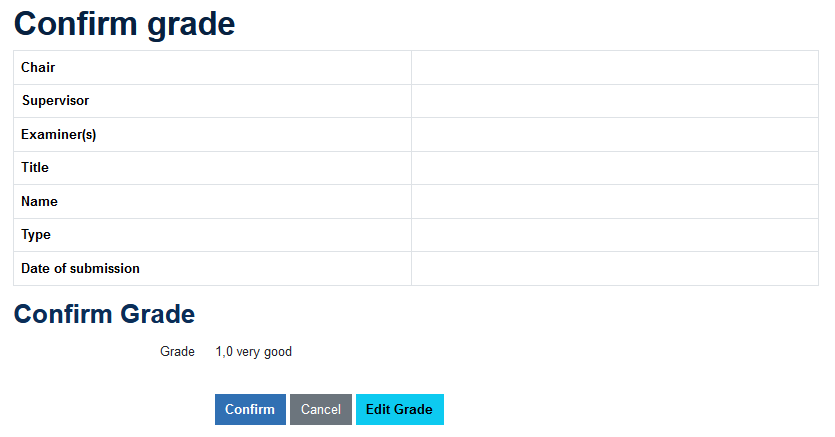
Examiner: If you agree with the final titel and grade, click Confirm. Should you wish to change it, click Edit Grade.
Publication of the Grade
Once the assessment of the thesis has been confirmed by the examiner(s), the student will receive an email with the grade.
The grade(s) and other relevant information are then transferred to TUMonline by the School Office.
School Office: Select the status filter Evaluated. To review the data, click Completed.
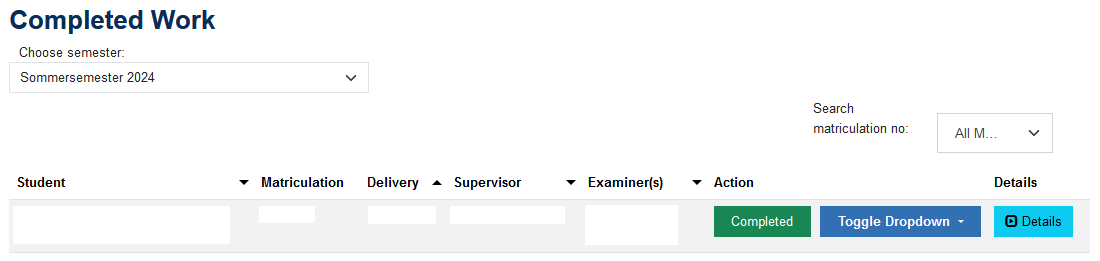
School Office: On the review page check that all data is correct. Transfer data to TUMonline by submit.
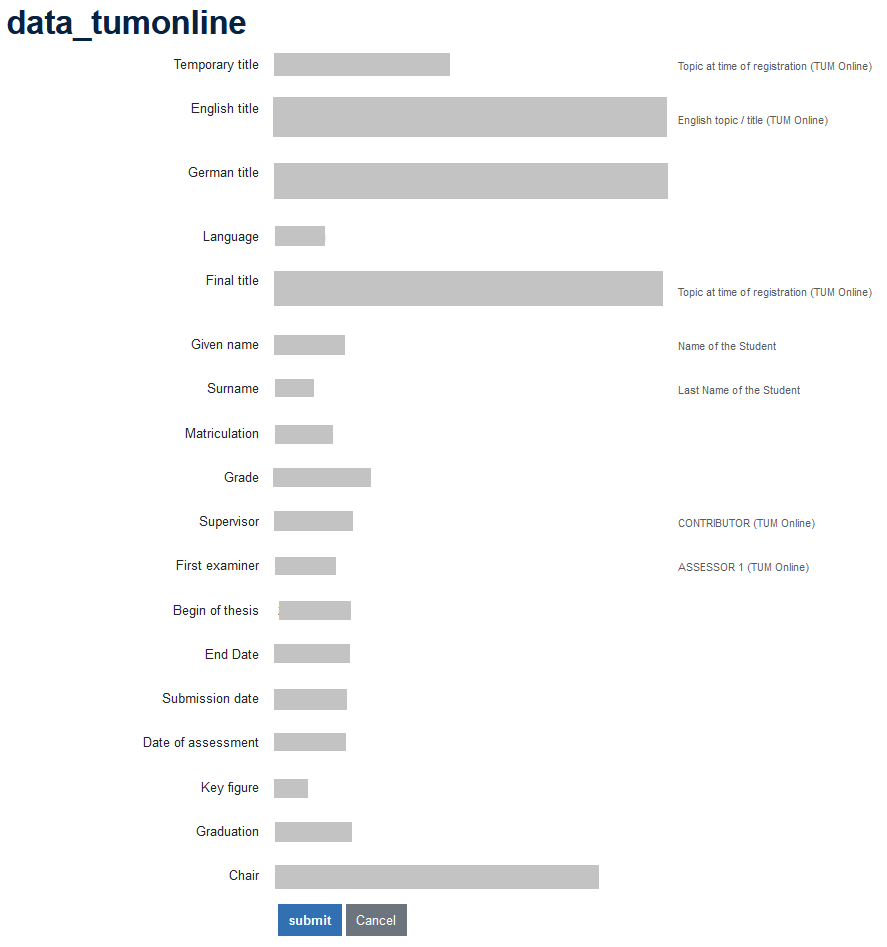
School Office: Open the thesis in TUMonline, check the data and validate the grade.